Details
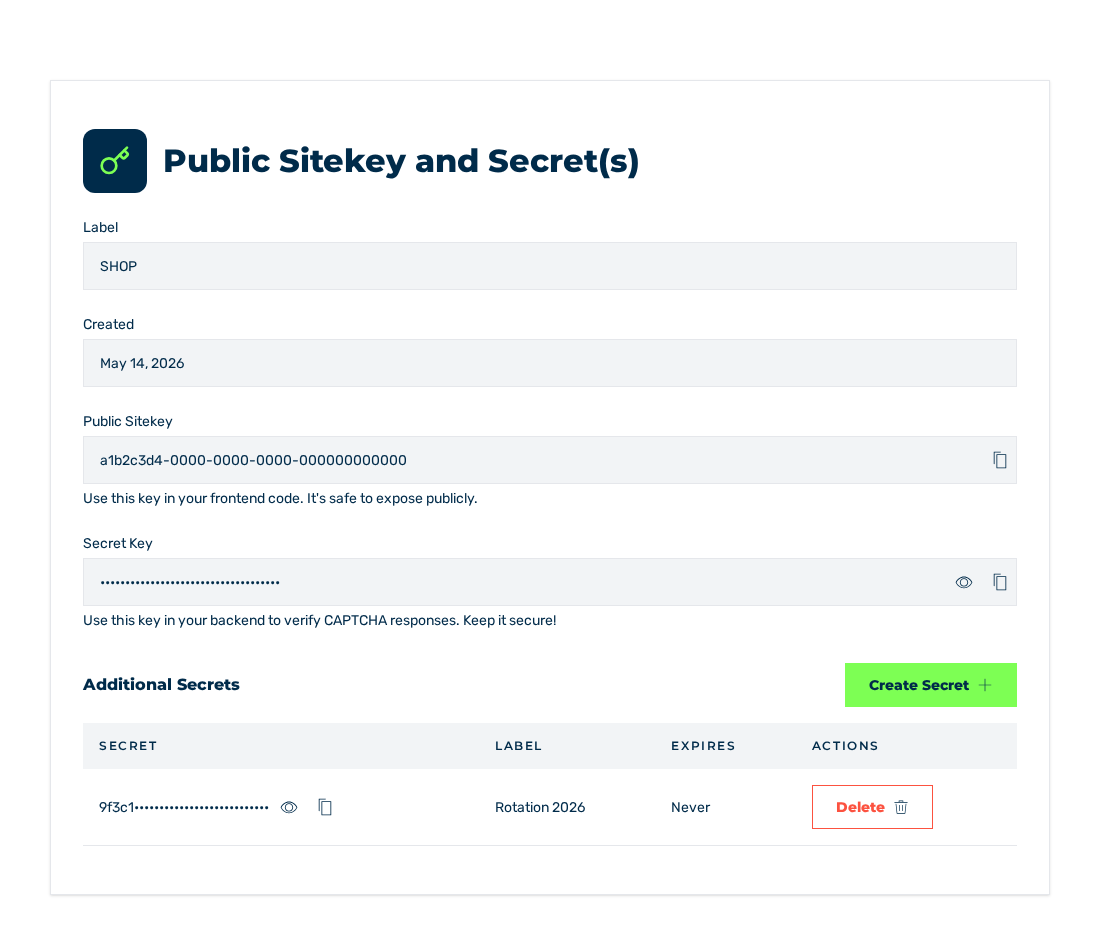
Details view
Below the Public Sitekey and Secret(s) title, the Details view shows the keys of the sitekey and its master data.
Fields
The view contains these fields:
| Field | Contents |
|---|---|
| Label | Label of the sitekey |
| Created | Date of the creation |
| Public Sitekey | Public key for the widget element |
| Secret Key | Secret key for the server-side verification |
The Label field is shown only if the sitekey has a label.
Below the Public Sitekey field, the note is Use this key in your frontend code. It's safe to expose publicly. Below the Secret Key field, the note is Use this key in your backend to verify CAPTCHA responses. Keep it secure!
The public sitekey is a UUID. It is used in the data-sitekey attribute of the widget element and is visible in the source code of your page.
The secret is shown hidden. It is only for your server. With the Read access tier, the view does not show the Secret Key field.
Attention
Never show the secret in the HTML or in JavaScript. With the secret, each token can be made valid.
Copy a key
Adjacent to each key, a button for the copy operation is available. The tooltip is Copy key to clipboard. After the copy operation, it changes to Key copied to clipboard.
Adjacent to the secret key, a related button shows the value. The tooltip is Show secret. When the value is shown, the tooltip is Hide secret.
The Additional Secrets area
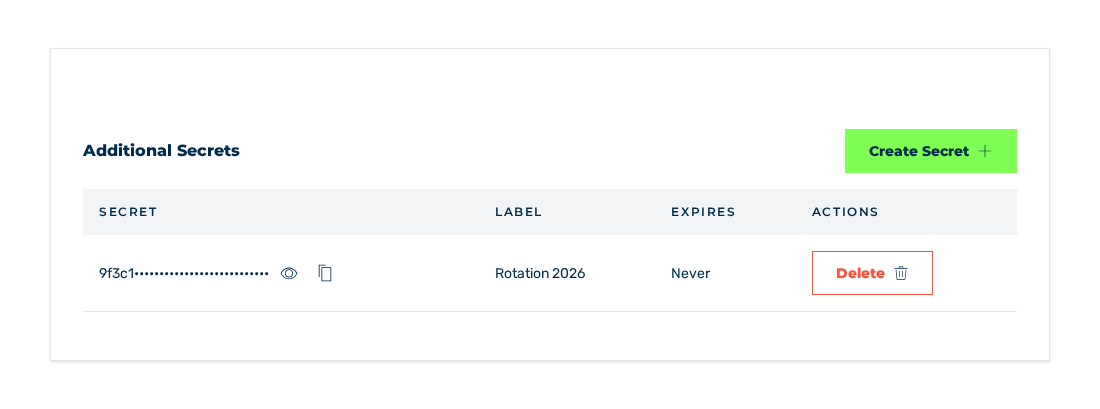
Additional Secrets area
The Additional Secrets area controls the other secrets of this sitekey. With the Read access tier, the view does not show the area.
Other secrets let you replace the secret during operation. You create a second secret, change your servers to it one by one, and then delete the old secret.
The table contains these columns:
| Column | Contents |
|---|---|
| Secret | Secret, hidden except for the first five characters |
| Label | Label of the secret. Without a label, a hyphen is shown. |
| Expires | Expiry date. Without an expiry date, the Never value is shown. |
| Actions | The Delete button |
While no other secret is available, the table shows the No additional secrets note.
In the Secret column, a button shows and hides the value. The tooltip is Show secret and Hide secret. A related button copies the value. Its tooltip is Copy to clipboard. After the copy operation, it changes to Copied!
The Create Secret dialog
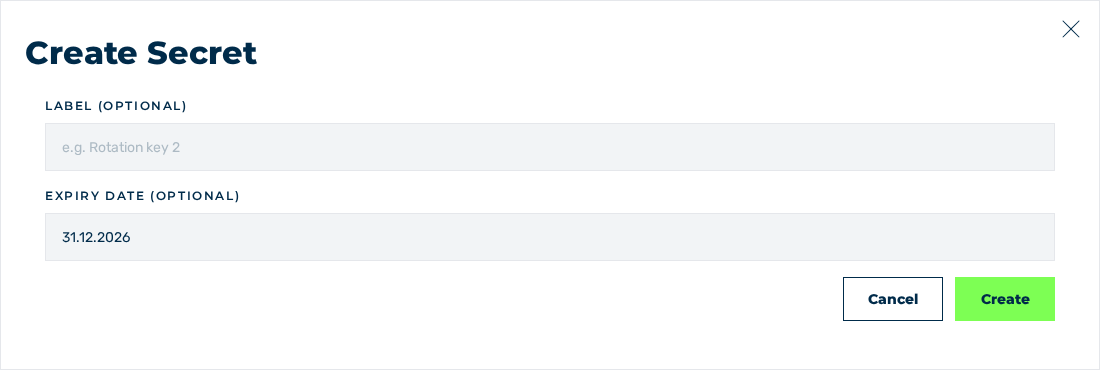
Create Secret dialog
The Create Secret button opens the Create Secret dialog. The dialog contains these options:
| Option | Description |
|---|---|
| The Label (optional) field | Label of the secret. The placeholder is e.g. Rotation key 2. |
| The Expiry date (optional) field | Expiry date of the secret |
| The Cancel button | Cancels the operation |
| The Create button | Creates the secret |
The Delete Secret dialog
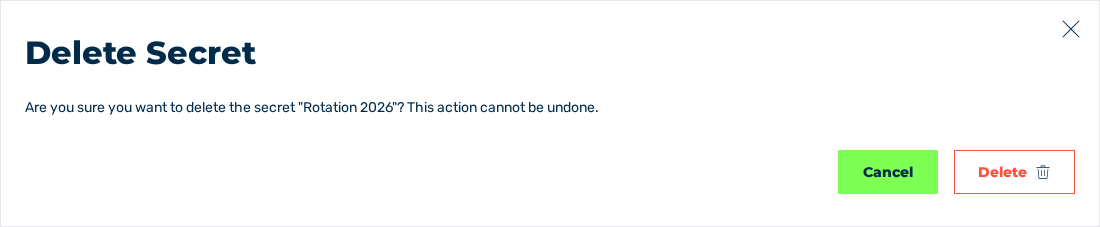
Delete Secret dialog
The Delete button opens the Delete Secret dialog with this question: Are you sure you want to delete the secret …? This action cannot be undone. The Delete button deletes the secret. The Cancel button cancels the operation.
After the delete operation, the system shows the Secret deleted message with the The secret has been removed text. If the delete operation is not successful, the Error message shows with the Failed to delete secret text. If the service sends an objection, the message shows that objection instead.
See Embedding the widget.