Book a plan
With a plan with costs, the settings of the sitekeys and the personal support are available. The billing occurs with a payment service provider.
The following requirements are met:
- ☑ You are logged in to the customer portal.
- ☑ No subscription is active for your account.
- ☑ The billing data and a means of payment are available to you.
Proceed as follows to book a plan:
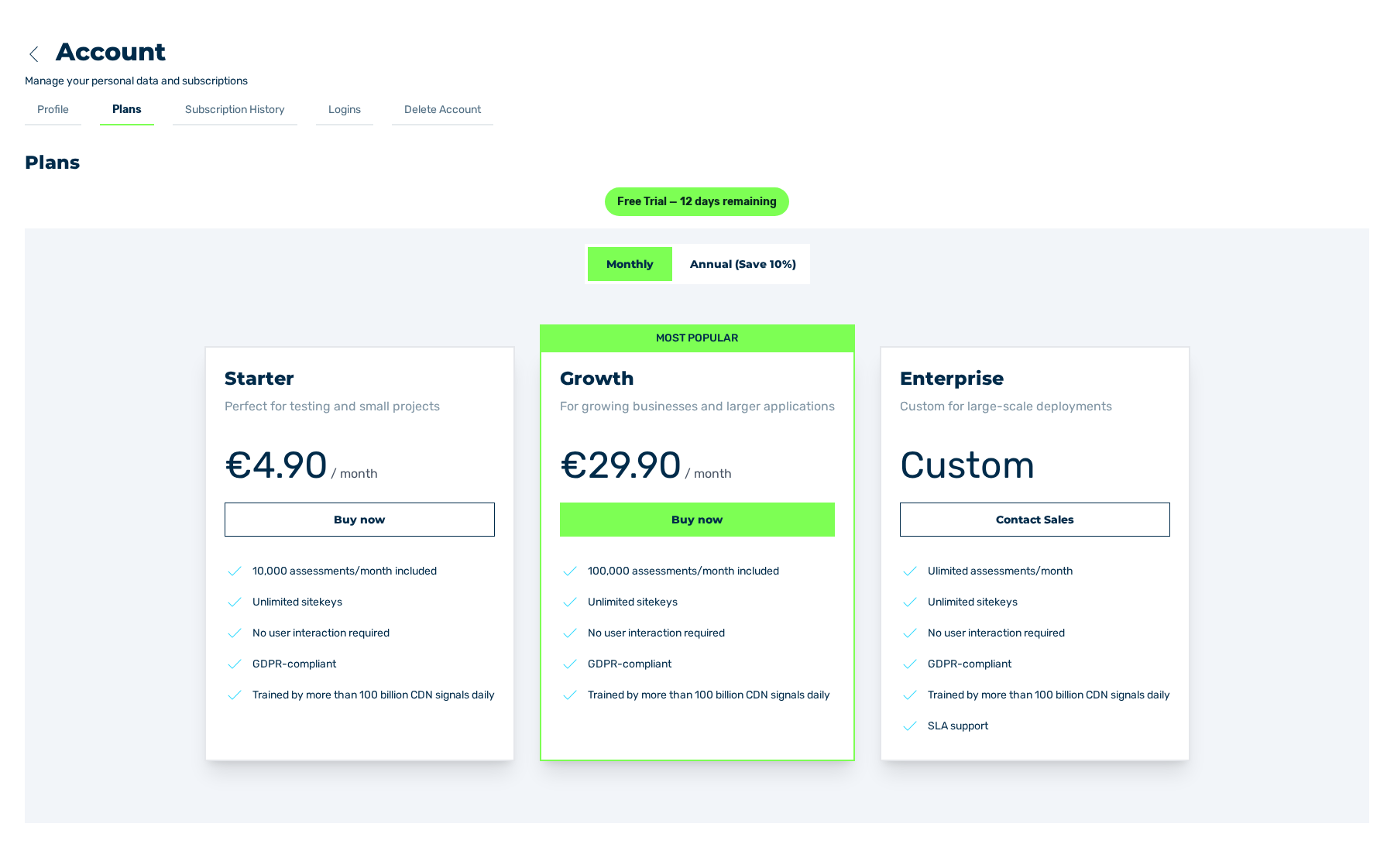
Plans tab
- ► In the sidebar, open the Account › Profile entry and go to the Plans tab.
- ► Click on the Monthly or Annual (Save up to 15%) button.
- ↳ The prices of the plans change to the selected billing period.
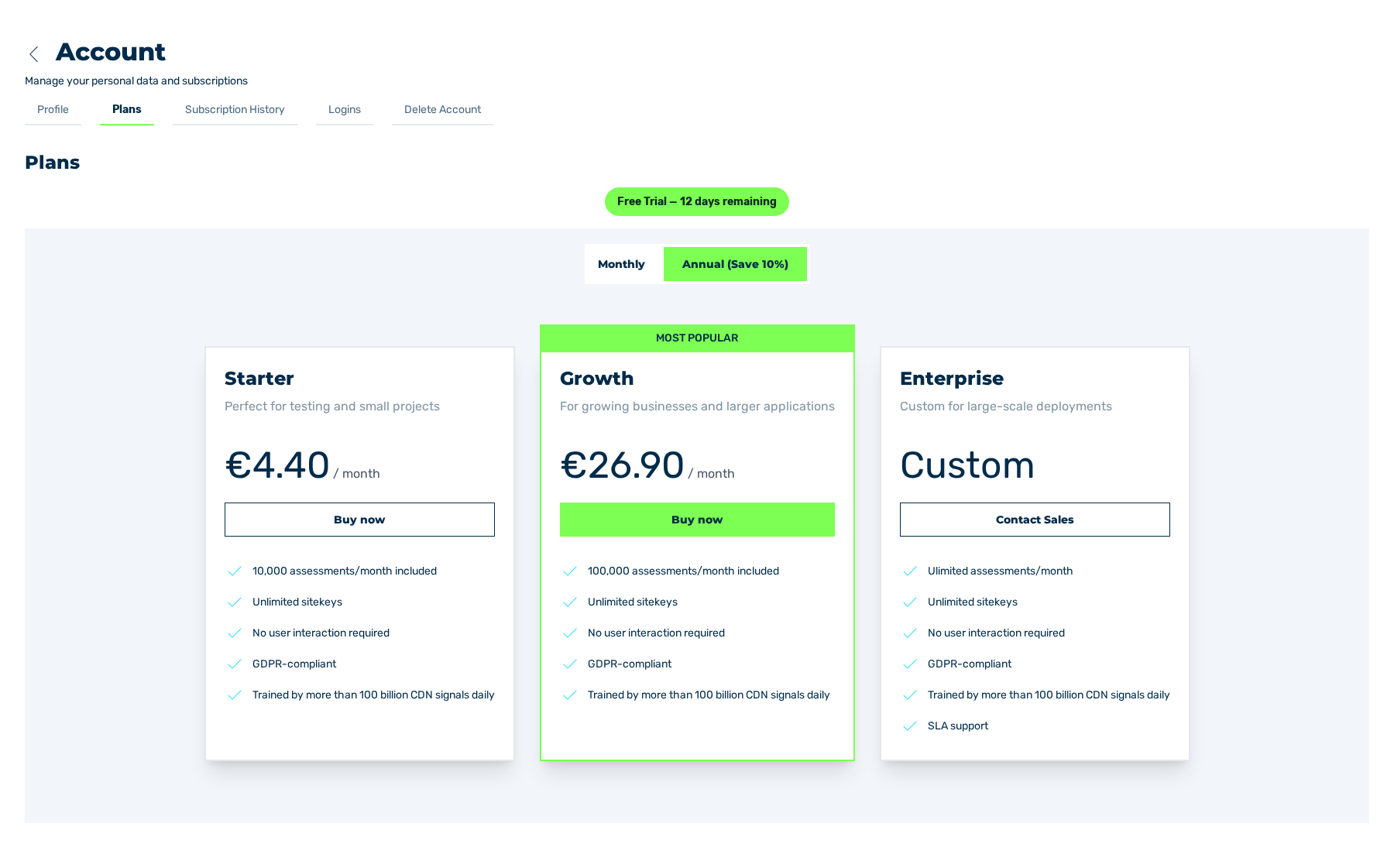
Plans tab with the annual billing
- ► In the applicable plan, click on the Buy now button.
- ↳ The Complete Your Purchase view is shown.
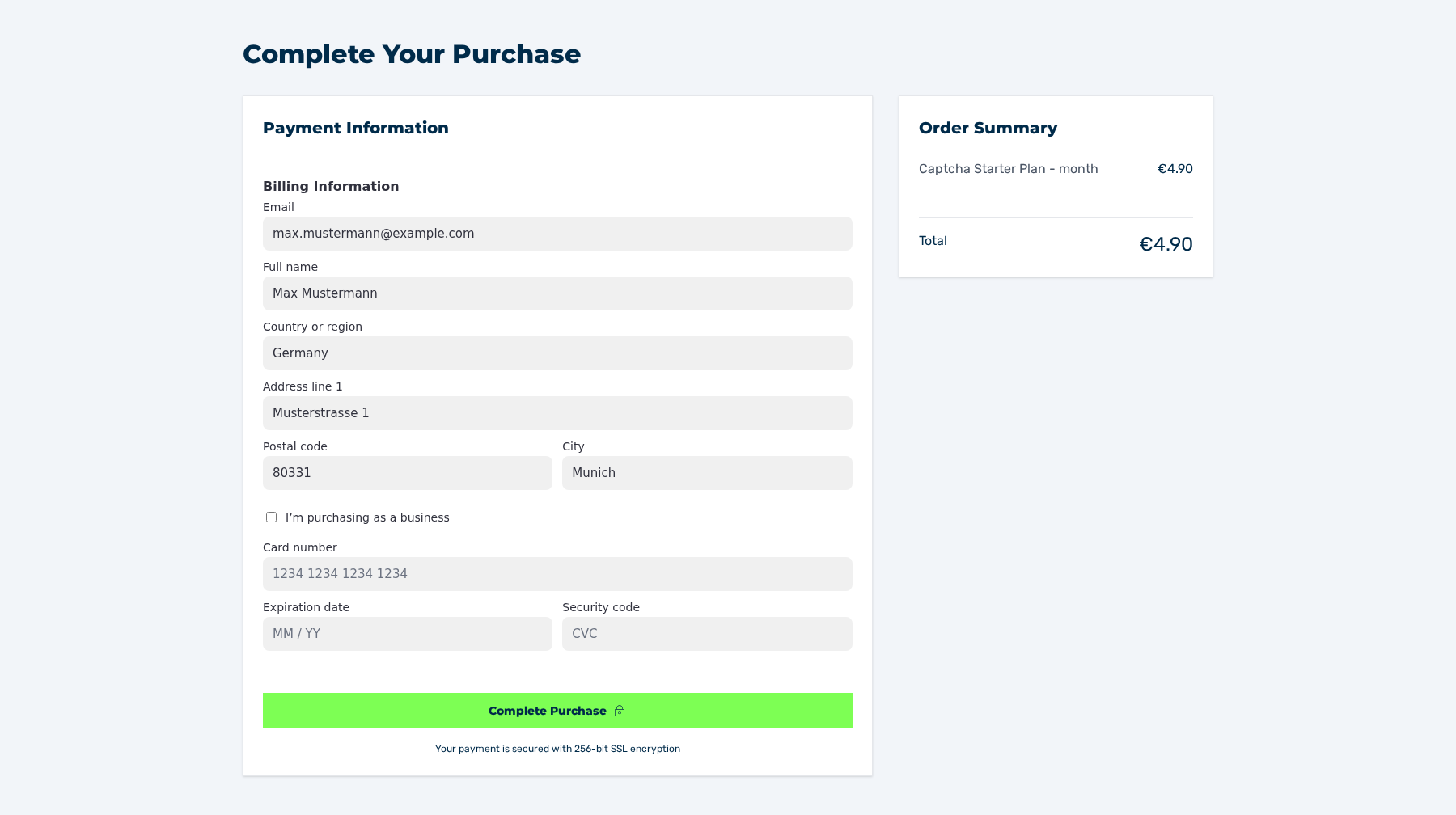
Complete Your Purchase view
- ► In the Billing Information area, enter the billing data.
- ► In the Payment Information area, enter the data of your means of payment.
- ► Click on the Complete Purchase button.
- ➔ The system activates the plan. The Subscription History tab contains an entry with the status of the subscription.
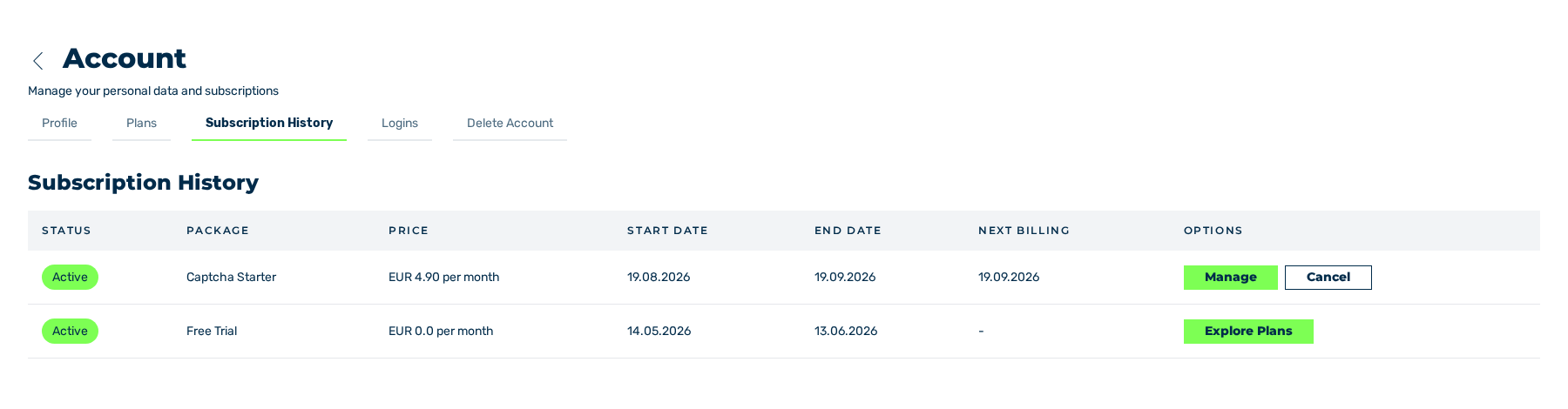
Subscription History tab with the new subscription
Note
While the trial period runs, the Buy now button of the Starter plan does not lead to the Complete Your Purchase view. See Commit to a plan during the trial period.
Booking as a business
As a business, select the I'm purchasing as a business check box. The view then shows a hint and the VAT Number (optional) field.
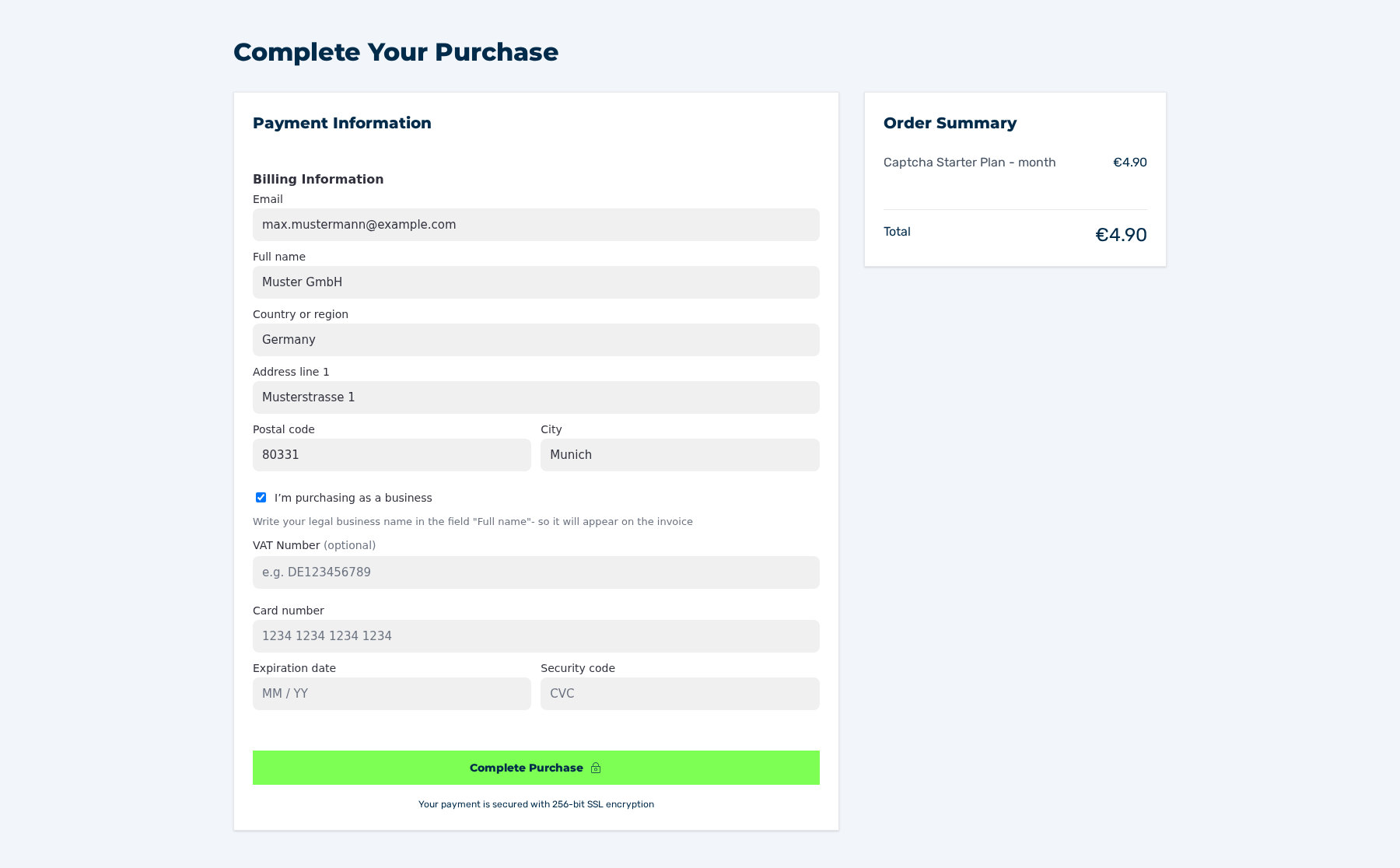
Complete Your Purchase view with the data of a business
- ► Select the I'm purchasing as a business check box.
- ↳ A hint about the business name in the Full name field and the VAT Number (optional) field are shown.
- ► In the Full name field, enter the name of your business.
- ► In the VAT Number (optional) field, enter your VAT identification number, for example
DE123456789. - ➔ The invoice has the name of the business. With a VAT identification number from the EU, the system bills with the reverse charge procedure.
Enterprise plan
For the Enterprise plan, the Contact Sales button goes to the contact form of Myra. The price and the range of services are agreed for each case.
Manage the subscription
Subscription History tab with the Manage button
To manage the payment data and the invoices, use the Manage button in the Subscription History tab. The button opens the customer portal of the payment service provider.