Set up two-factor authentication
For the login with the e-mail address and the password, the two-factor authentication also asks for a six-digit code from an authenticator app. For the login with a passkey and for the login with Google, GitHub, Apple, Okta, or SAML, the portal does not ask for the code.
The following requirements are met:
- ☑ You are logged in to the customer portal.
- ☑ An authenticator app is installed on your mobile device.
Proceed as follows to set up the two-factor authentication:
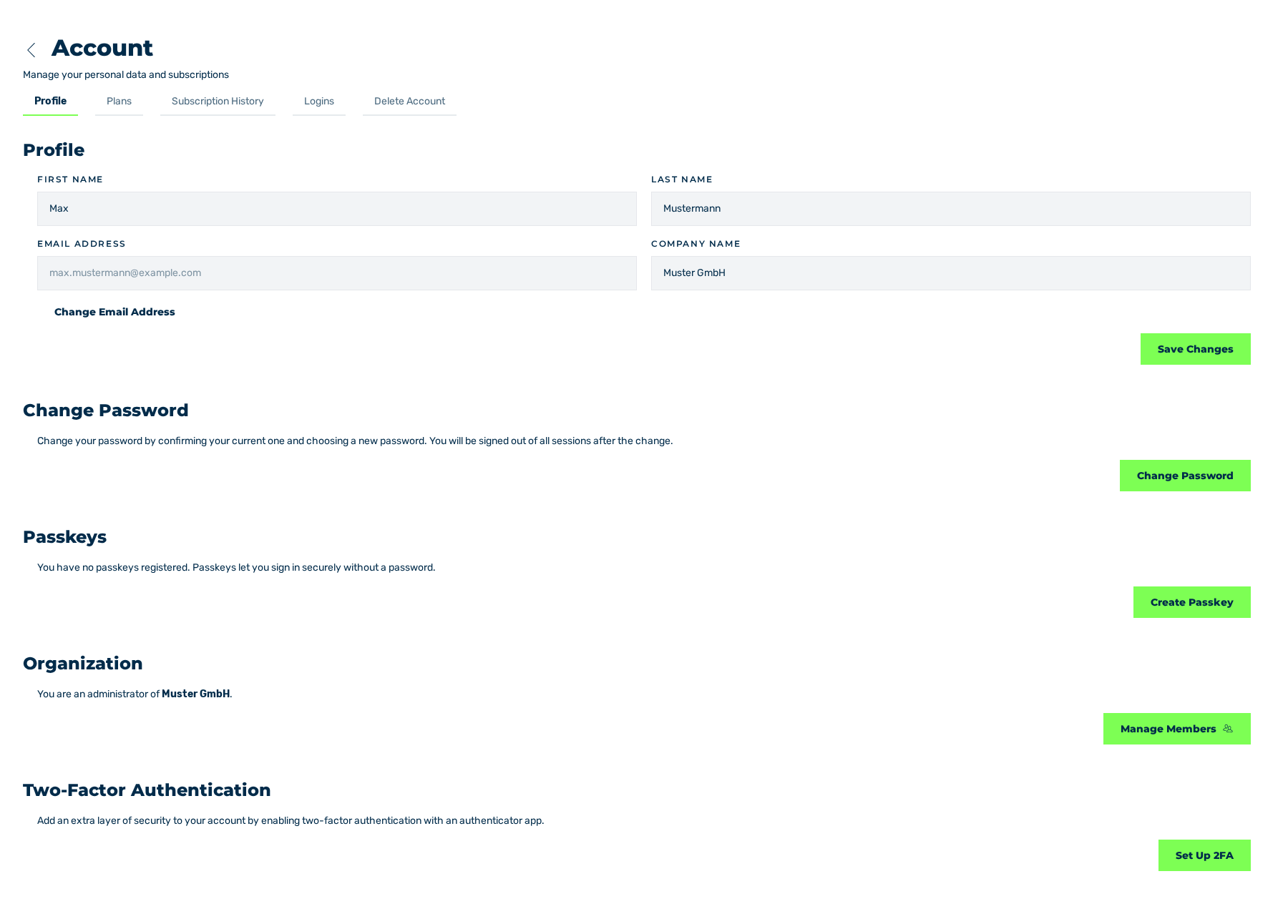
Profile tab
- ► In the sidebar, open the Account › Profile entry.
- ► Click on the Set Up 2FA button.
- ↳ The Set Up Two-Factor Authentication view is shown.
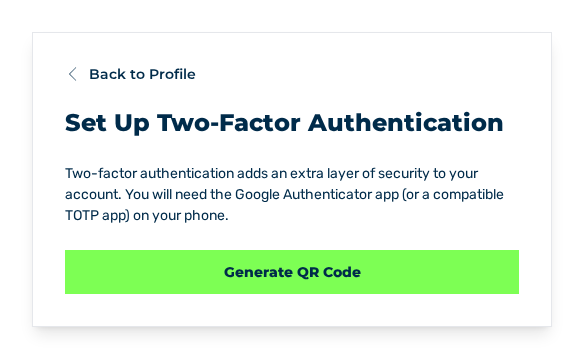
Set Up Two-Factor Authentication view
- ► Click on the Generate QR Code button.
- ↳ The system shows the QR code. Below it, the secret is shown as text below Or enter this secret manually:, for example
XXXX XXXX XXXX XXXX.
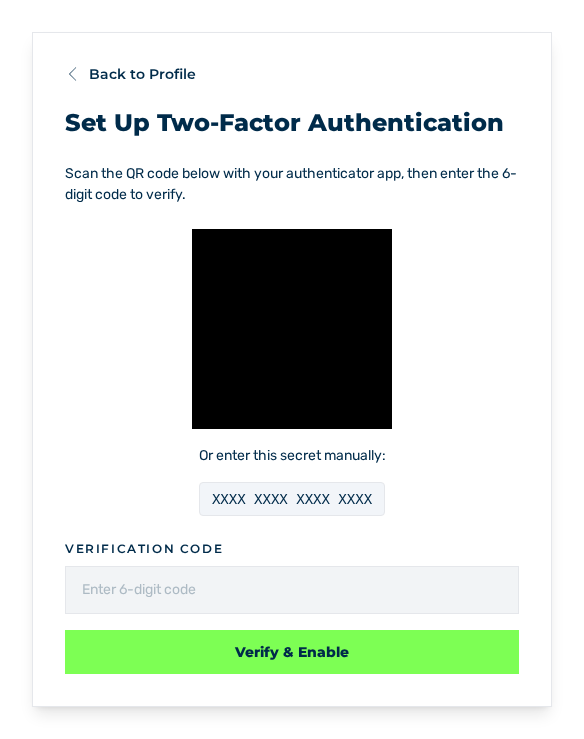
Set Up Two-Factor Authentication view with the masked QR code
- ► Scan the QR code with your authenticator app. As an alternative, enter the secret in the app.
- ► In the Verification code field, enter the six-digit code from the app.
- ► Click on the Verify & Enable button.
- ➔ The system activates the two-factor authentication and shows the message Two-factor authentication has been enabled successfully.
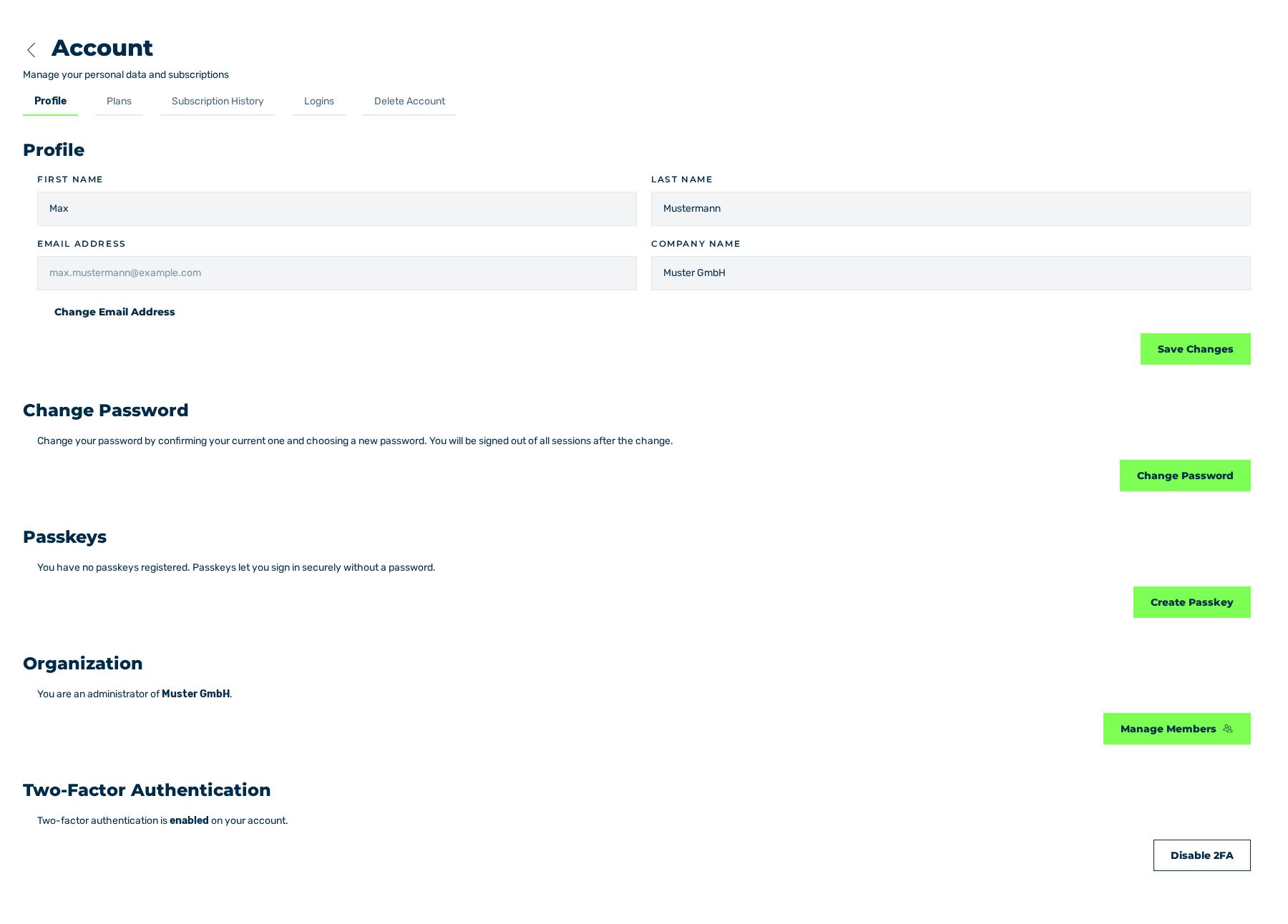
Profile tab with the two-factor authentication activated
- ► Click on the Back to Profile button.
Attention
Keep the secret in a safe location. Without the authenticator app and without the secret, the login is not possible.