HTML and Django
This example protects the contact form of an application that already exists and has no frontend framework. The page is delivered as a Django template. The form sends a usual POST. The widget makes the hidden eu-captcha-response field itself, which goes with the form.
Note
In a single-page application, you accept the token with a callback and send it as JSON instead. See React and PHP.
Requirements
The following requirements are met:
| Requirement | Value |
|---|---|
| Django project | in operation and delivers the page |
| Python | Version 3 with pip |
| Sitekey | Public sitekey and secret from the Details view |
Attention
The public sitekey belongs in the page, the secret only on the server. Each visitor can read a secret that is in a template.
Project structure
These files change. All other parts of the project stay unchanged:
my-project/                       # existing Django project
├── manage.py
├── templates/
│   └── contact.html              # ← Steps 1 and 2: embed the script and the widget
└── server/
    ├── settings.py               # ← Step 3: enter the app and the credentials
    ├── urls.py                   # ← Step 3: register the /contact/ route
    └── views.py                  # ← Step 3: put the verification at the start of the view
Step 1: Embed the widget
The page is in the templates/contact.html file.
Load the verify.js script from the Myra CDN and put the widget element in the form:
<script src="https://cdn.eu-captcha.eu/verify.js" async defer></script>

<form action="/contact/" method="post">
  <input name="email" type="email" required />
  <textarea name="message" required></textarea>

  <div class="eu-captcha" data-sitekey="EUCAPTCHA_SITE_KEY"></div>

  <button type="submit">Submit</button>
</form>
The script makes the iframe of the widget, starts the challenge automatically, and puts the hidden eu-captcha-response field in the form. The field goes with the transmission.
Step 2: Release the transmission
If necessary, disable the button and release it only after the challenge. To do this, read the euCaptchaCompleted window message. Examine the origin of the message, because each script and each extension in the browser can send messages:
<script>
  const CAPTCHA_ORIGIN = "https://cdn.eu-captcha.eu";
  const btn = document.querySelector('button[type="submit"]');
  btn.disabled = true;

  window.addEventListener("message", (msg) => {
    if (msg.origin !== CAPTCHA_ORIGIN) return;
    const data = msg.data ?? {};
    if (data.type === "euCaptchaCompleted") {
      btn.disabled = false;
    }
  });
</script>
Attention
The disabled button in the browser controls only the operation. The verification of the token on the server is always necessary.
Step 3: Verify the token
The verification belongs in the view that accepts the POST of the form, here the /contact/ route in the server/views.py file. It is in the first position, before all processing.
Install the app:
Enter the app and the credentials in the settings.py file:
import os

INSTALLED_APPS = [
    # ...
    "myra_eucaptcha_django",
]

EUCAPTCHA_SITEKEY = os.environ["EUCAPTCHA_SITE_KEY"]
EUCAPTCHA_SECRET = os.environ["EUCAPTCHA_SECRET_KEY"]
Make the tables of the app:
Put the verification at the start of the view:
from django.core.exceptions import ValidationError
from django.http import HttpResponse, HttpResponseBadRequest
from myra_eucaptcha_django import validate_captcha


def contact(request):
    if request.method == "POST":
        # verification before all processing
        try:
            validate_captcha(
                token=request.POST.get("eu-captcha-response", ""),
                remote_addr=request.META.get("REMOTE_ADDR"),
            )
        except ValidationError:
            return HttpResponseBadRequest("captcha verification failed")

        # the existing logic continues from here
        email = request.POST["email"]
        message = request.POST["message"]
        return HttpResponse("Thank you!")
Note
The widget puts the token in a form field. Thus, it is in request.POST. Keep the sitekey and the secret in environment variables. As an alternative, keep the credentials in the administration area of Django at Captcha Configurations. The configuration that is set as the default has precedence over the values from settings.py.
Attention
In training mode, validate_captcha causes no ValidationError. The transmission goes through. Training mode is effective only when the protection is off. The verification rejects an unknown sitekey and a wrong secret with success: false. Thus, always do the test with the true credentials from the customer portal.
See Django.
Verify the integration
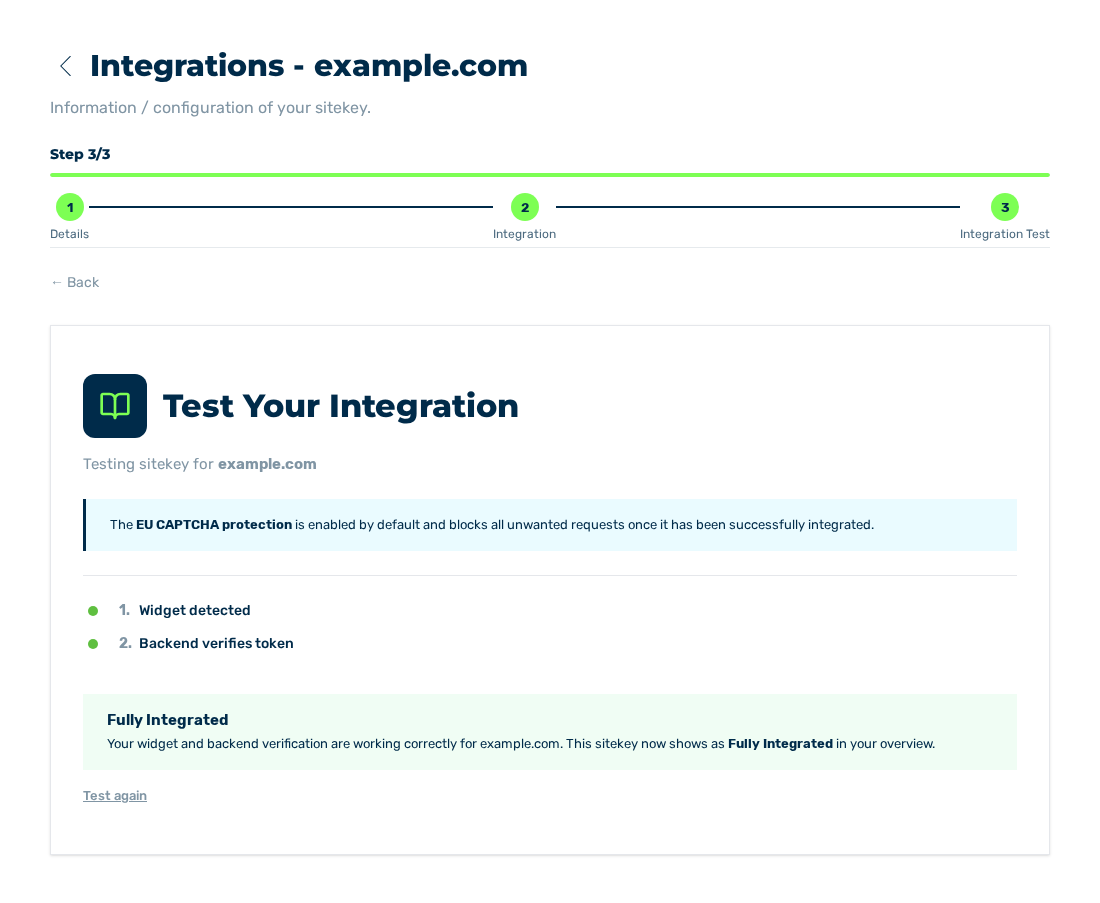
Integration Test view with the Fully Integrated result
At the end, use the Integration Test view of the sitekey to examine if the frontend and the backend operate together. Then the sitekey has the Fully Integrated status.