Views
The customer portal of Myra EU CAPTCHA has a sidebar and a work area. The sidebar goes to the views, the work area shows the selected view.
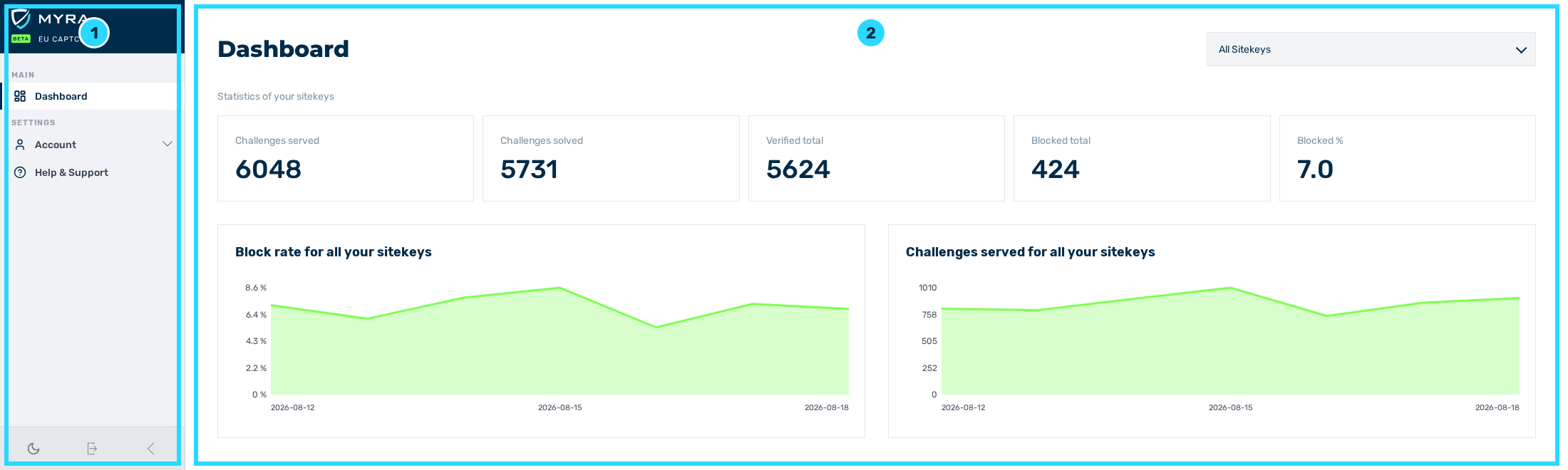
Structure of the customer portal
Sidebar
The sidebar has areas. These entries are available:
| Area | Entry | Destination |
|---|---|---|
| MAIN | Dashboard | Dashboard view with key figures, graphs, and the list of the sitekeys |
| SETTINGS | Account › Profile | Account view with the tabs for profile, logins, plans, subscriptions, and deletion |
| — | Help & Support | Help view with the links to documentation and support |
The Account entry can be opened. A click on the entry shows the subordinate entries.
At the top of the sidebar, the Myra logo is shown with the BETA mark. At the bottom, these buttons are available:
- Switch to dark mode and Switch to light mode change between the light and the dark appearance.
- Logout logs you out of the customer portal.
- Collapse sidebar and Expand sidebar make the sidebar smaller and larger. When it is smaller, the sidebar shows only the icons. The name of the entry is shown as a tooltip.
Note
The ADMINISTRATION area with the Admin Control entry is only for the administration by Myra. This online help does not describe it.
Overview of the views
These views are available:
| View | Contents |
|---|---|
| Dashboard view | Key figures and graphs about the challenges, and below them the list of the sitekeys |
| Sitekey List area | Table of all sitekeys with domain, status, and options; part of the Dashboard view |
| Sitekey view | Details, configuration, integration, integration test, permissions, and challenges of one sitekey |
| Account view | Profile, logins, plans, subscriptions, and deletion of the account |
| Organization view | Members of the organization and parameters for SAML and SSO |
| Help view | Links to documentation and support |