Deactivating the two-factor authentication
After the deactivation, the e-mail address and the password are sufficient for the login.
The following requirements are met:
- ☑ You are logged in to the customer portal.
- ☑ The two-factor authentication is active for your account.
Proceed as follows to deactivate the two-factor authentication:
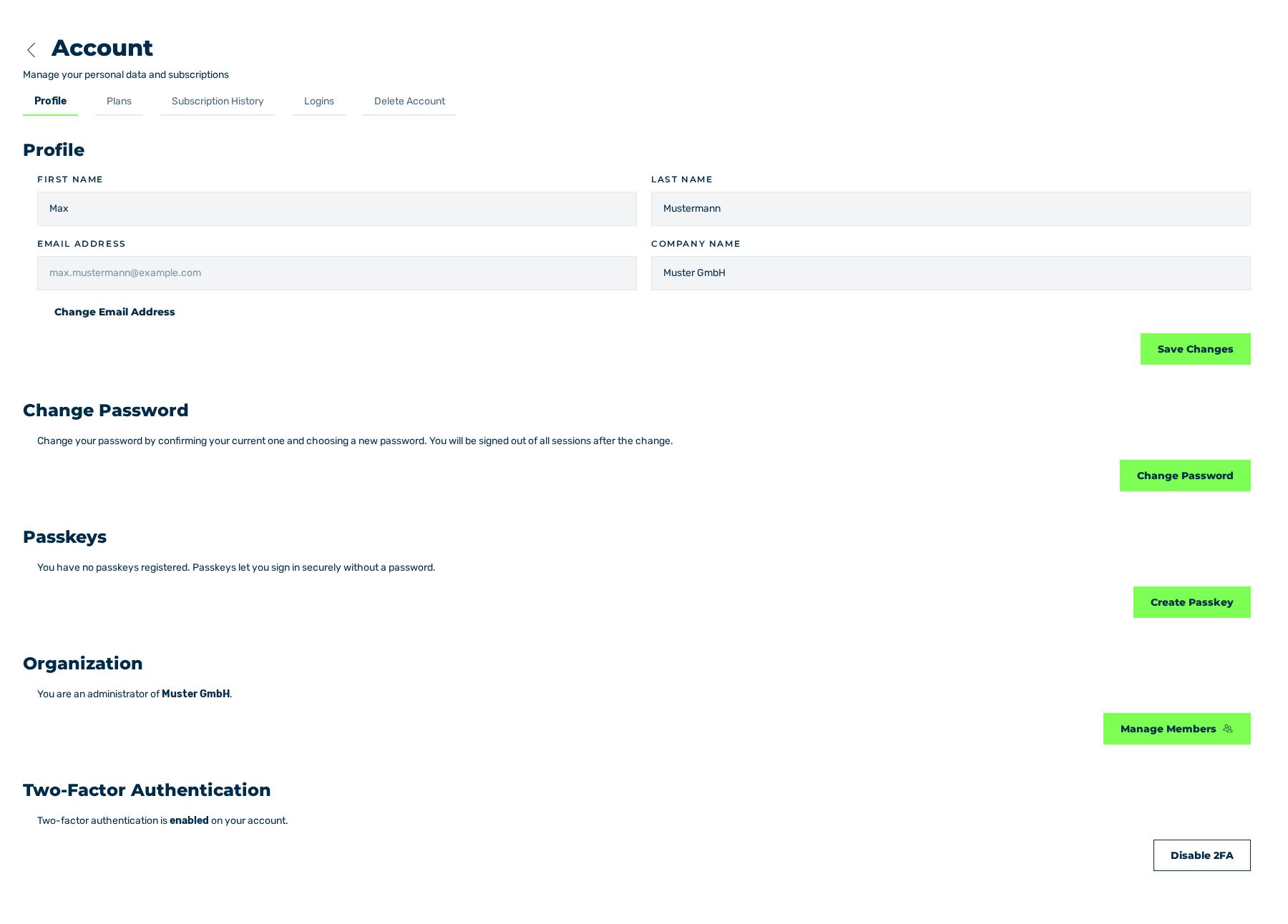
Profile tab
- ► In the sidebar, open the Account › Profile entry.
- ► Click on the Disable 2FA button.
- ↳ The Disable Two-Factor Authentication dialog is shown.
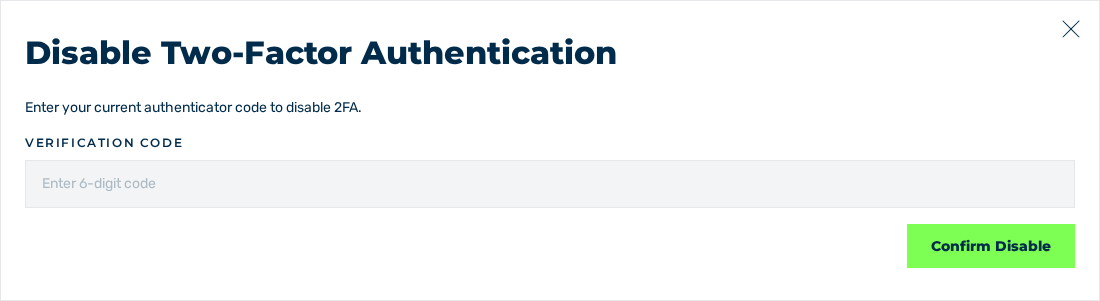
Disable Two-Factor Authentication dialog
- ► In the Verification code field, enter the six-digit code from your authenticator app.
- ► Click on the Confirm Disable button.
- ➔ The system deactivates the two-factor authentication and shows the Two-factor authentication has been disabled. message.
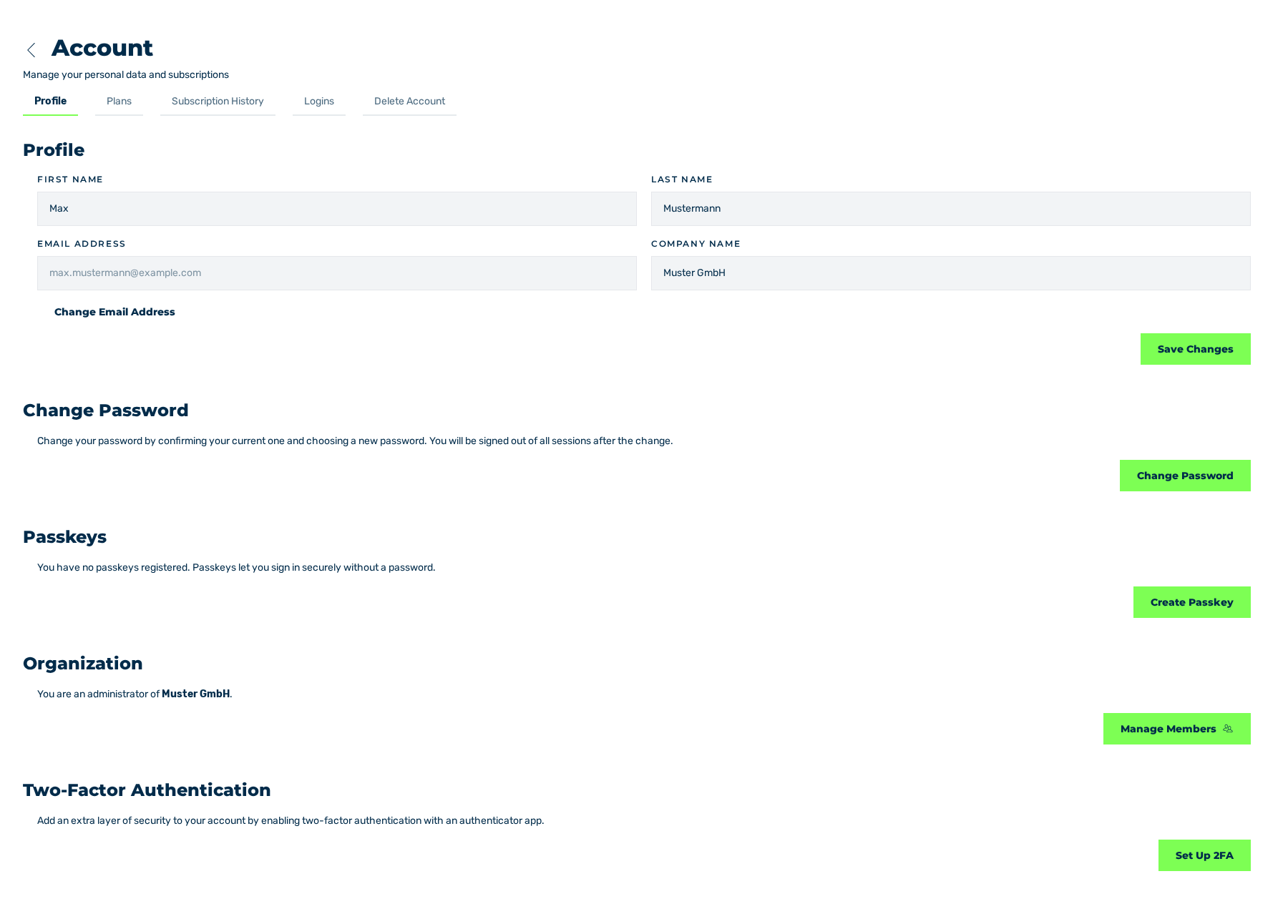
Profile tab without the two-factor authentication
Attention
Without the two-factor authentication, only the password protects your account. Examine the log of the logins regularly. See Logins tab.