Change password
You change the password of your account in the Profile tab. After the change, the portal logs you out.
The following requirements are met:
- ☑ You are logged in to the customer portal.
- ☑ You know your current password.
Proceed as follows to change the password:
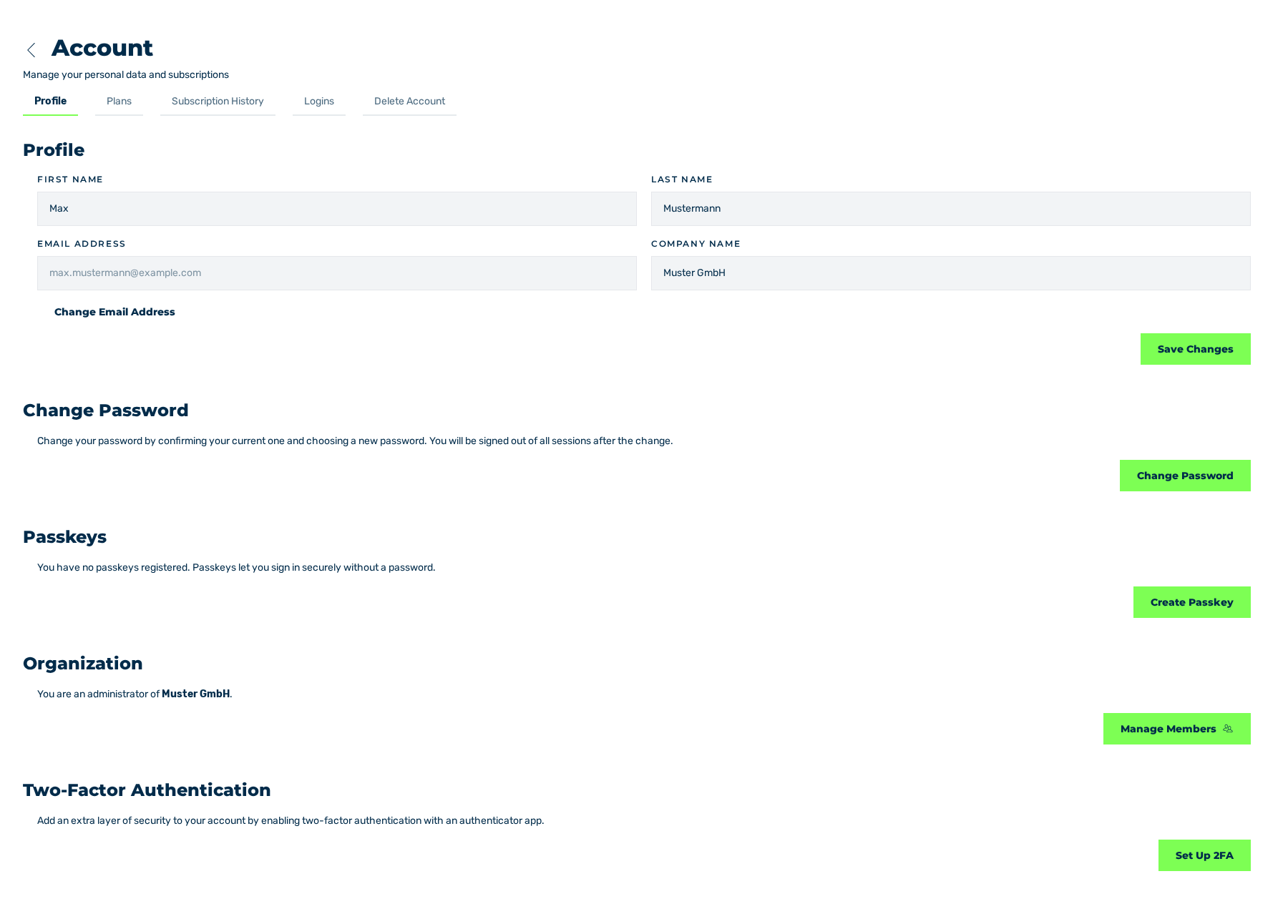
Profile tab
- ► In the sidebar, open the Account › Profile entry.
- ► Click on the Change Password button.
- ↳ The Change Password dialog is shown.
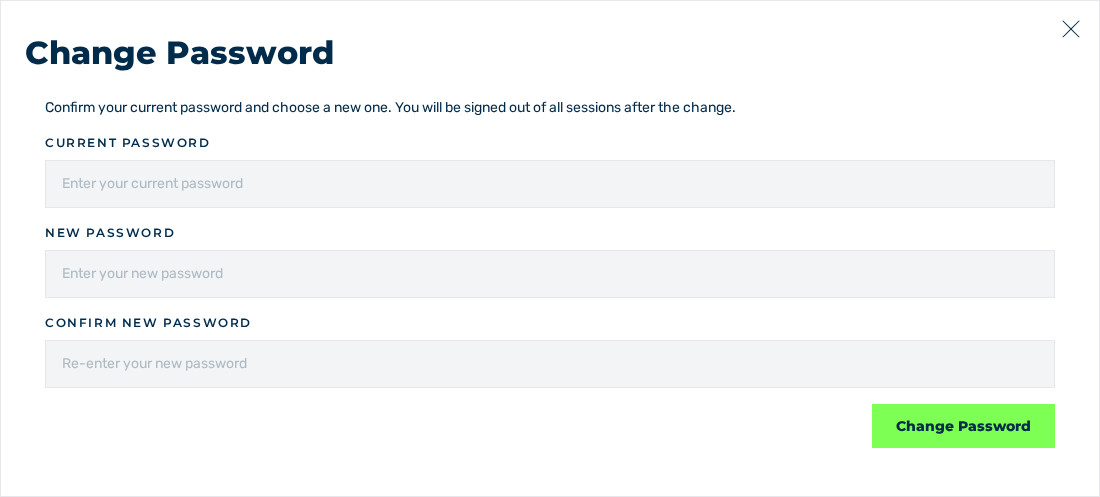
Change Password dialog
- ► In the Current password field, enter your current password.
- ► In the New password field, enter the new password.
- ► In the Confirm new password field, enter the new password again.
- ► Click on the Change Password button.
- ➔ The system changes the password and shows the Password changed message with the Your password was changed. Please sign in again. text. The login page is shown.
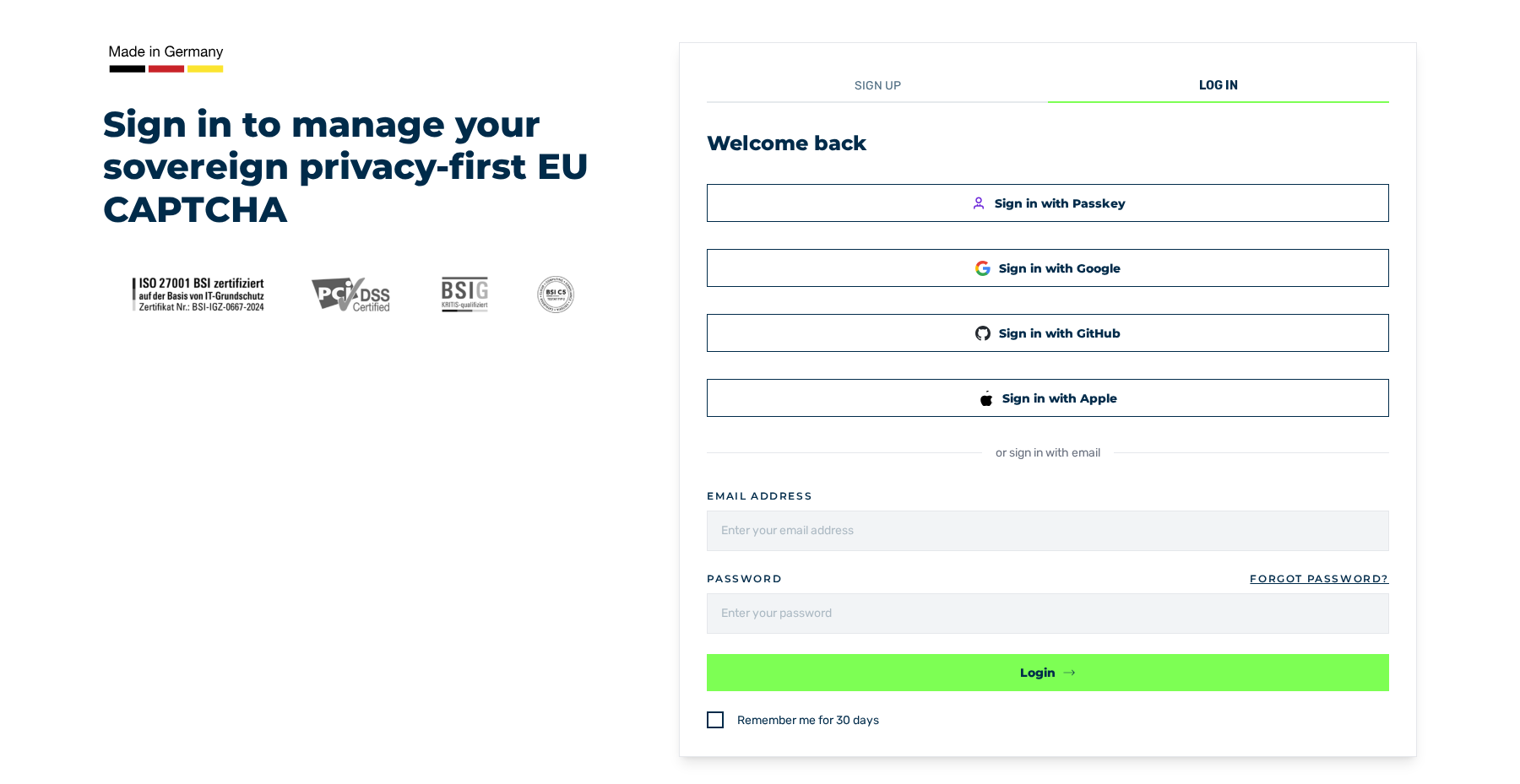
Welcome back view
- ► Log in with the new password.
See Log in.