Svelte and Ruby
This example protects the contact form of an application that already exists. The frontend is a Svelte application with Vite, the backend is a Ruby server with Sinatra. Both are already in operation. For the Myra EU CAPTCHA, you change only the files that an arrow marks below.
Requirements
The following requirements are met:
| Requirement | Value |
|---|---|
| Node.js with npm | installed |
| Svelte | Version 5 |
| Ruby | From version 2.7 |
| Sitekey | Public sitekey and secret from the Details view |
Attention
The public sitekey belongs in the frontend, the secret only in the backend. Each visitor can read a secret that is in the delivery package of the frontend.
Project structure
These files change. All other parts of the project stay unchanged:
my-project/
├── frontend/                     # existing Svelte application (Vite)
│   ├── package.json              # ← Step 1: enter the @myrasec/eu-captcha-svelte package
│   ├── vite.config.js
│   └── src/
│       ├── main.js
│       ├── App.svelte
│       └── ContactForm.svelte    # ← Steps 1 and 2: embed the widget, send the token
└── backend/                      # existing Ruby server (Sinatra)
    ├── Gemfile                   # ← Step 3: enter the eu_captcha gem
    └── app.rb                    # ← Step 3: put the verification at the start of the route
Step 1: Embed the widget
The form is in the frontend/src/ContactForm.svelte file.
Install the package:
Put the EuCaptcha component in the form and accept the token with the onComplete callback:
<form onsubmit={handleSubmit}>
  <input name="email" type="email" required />
  <textarea name="message" required></textarea>

  <!-- onComplete gives the token as soon as the challenge is complete -->
  <EuCaptcha sitekey={captchaSitekey} onComplete={(t) => (token = t)} />

  <button type="submit">Submit</button>
</form>
The component loads the verify.js script, makes the iframe of the widget, and starts the challenge automatically.
Step 2: Send the token
Before the transmission, use isEuCaptchaDone() to examine if the challenge is complete. Then send the token in the eu-captcha-response field of the JSON body:
<script>
  import { EuCaptcha, isEuCaptchaDone } from "@myrasec/eu-captcha-svelte";

  const captchaSitekey = "EUCAPTCHA_SITE_KEY";
  let token = "";

  async function handleSubmit(e) {
    e.preventDefault();
    if (!isEuCaptchaDone()) {
      // challenge not yet complete
      return;
    }
    const fields = Object.fromEntries(new FormData(e.target));
    const res = await fetch("/api/contact", {
      method: "POST",
      headers: { "Content-Type": "application/json" },
      body: JSON.stringify({ ...fields, "eu-captcha-response": token }),
    });
    if (res.ok) {
      // success
    }
  }
</script>
Step 3: Verify the token
The verification belongs in the handler on the server that accepts the form data, here the /api/contact route in the backend/app.rb file. It is in the first position, before all processing.
Install the gem:
Read the fields from the JSON body and put the verification at the start of the route:
require 'eu_captcha'
require 'json'

captcha = EuCaptcha::Client.new(
  sitekey: ENV['EUCAPTCHA_SITE_KEY'],
  secret:  ENV['EUCAPTCHA_SECRET_KEY']
)

post '/api/contact' do
  payload = JSON.parse(request.body.read)

  # verification before all processing
  result = captcha.validate(
    token:       payload['eu-captcha-response'],
    remote_addr: request.ip
  )
  halt 400, 'captcha verification failed' unless result.success?

  # the existing logic continues from here
  email   = payload['email']
  message = payload['message']
  'Thank you!'
end
Note
The Ruby client needs the token explicitly. Read it from the eu-captcha-response field of the JSON body and give it to validate together with the IP address of the visitor. Keep the sitekey and the secret in environment variables, from which ENV reads them.
In training mode, the success? method gives the false value. Thus, a wrong configuration does not go through without a verification.
See Ruby.
Verify the integration
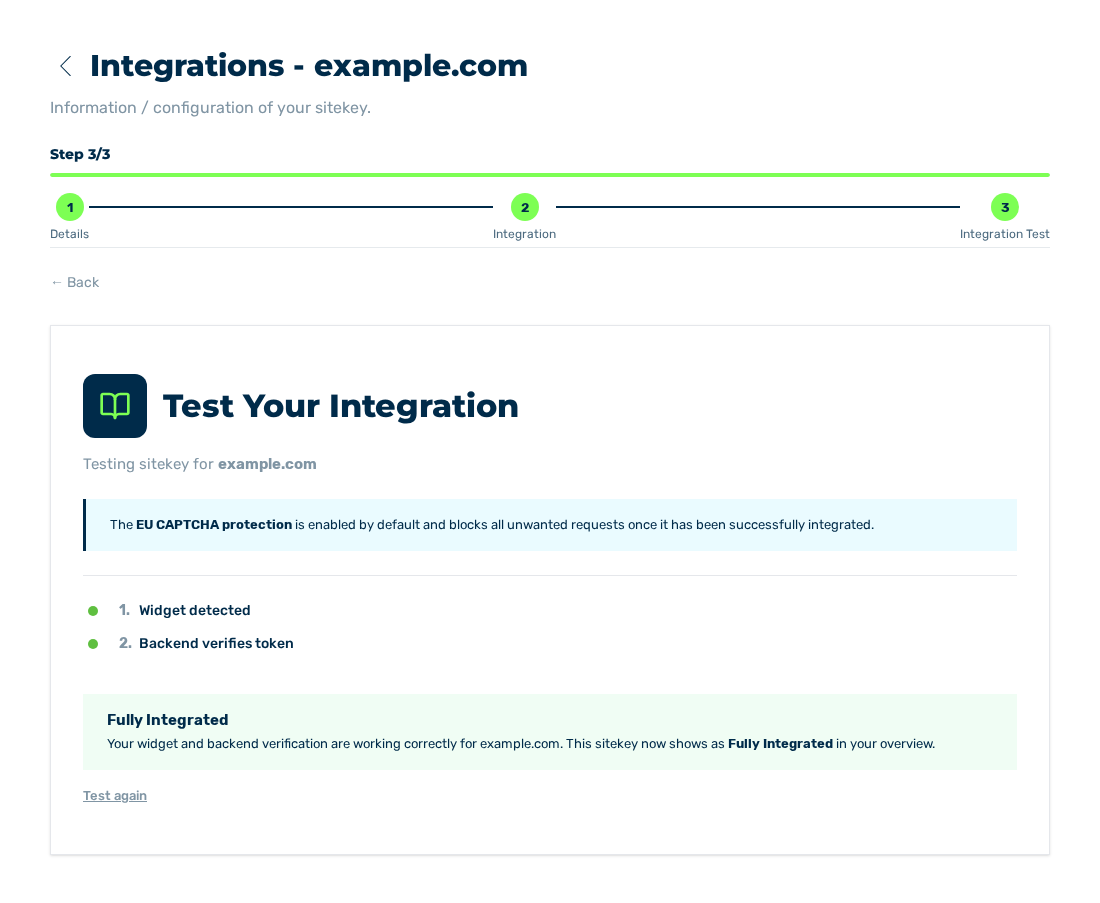
Integration Test view with the Fully Integrated result
At the end, use the Integration Test view of the sitekey to examine if the frontend and the backend operate together. Then the sitekey has the Fully Integrated status.