Create the first sitekey
A sitekey connects a domain with Myra EU CAPTCHA. For each domain that you want to protect, create a related sitekey. The sitekey has a public key for the widget and a secret for the server-side verification.
Creation of the first sitekey in the customer portal
The following requirements are met:
- ☑ You are logged in to the customer portal. See Log in.
- ☑ You know the domain that you want to protect.
Proceed as follows to create the first sitekey:
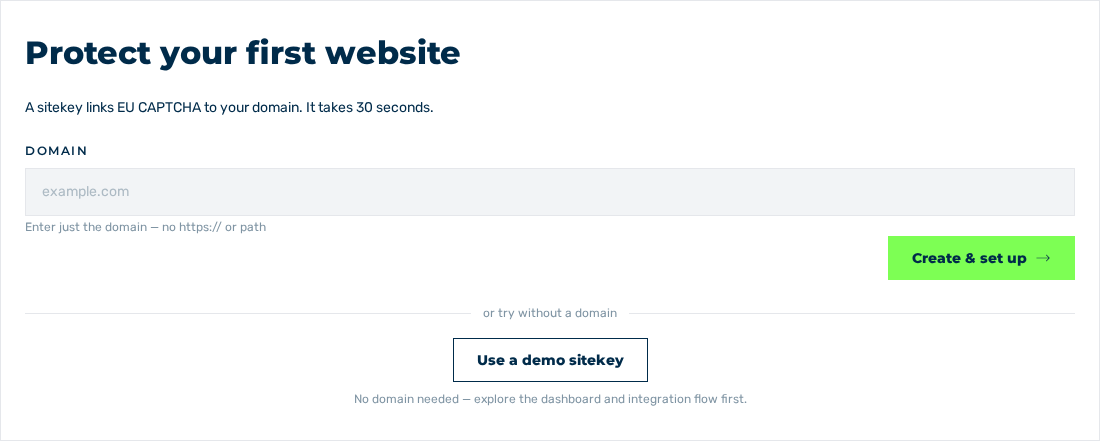
Protect your first website dialog
- ► Open the Dashboard view.
- ↳ While no sitekey is available, the Protect your first website dialog is shown. The description is A sitekey links EU CAPTCHA to your domain. It takes 30 seconds.
- ► In the Domain field, enter the domain to protect, for example
example.com. The note below the field is Enter just the domain — no https:// or path. - ► Click on the Create & set up button.
- ↳ The system creates the sitekey and shows the Success message with this text: You have successfully created your first Sitekey! Now it is time to integrate the Sitekey on your website. We will show you how.
- ➔ The Integration view of the new sitekey is shown.
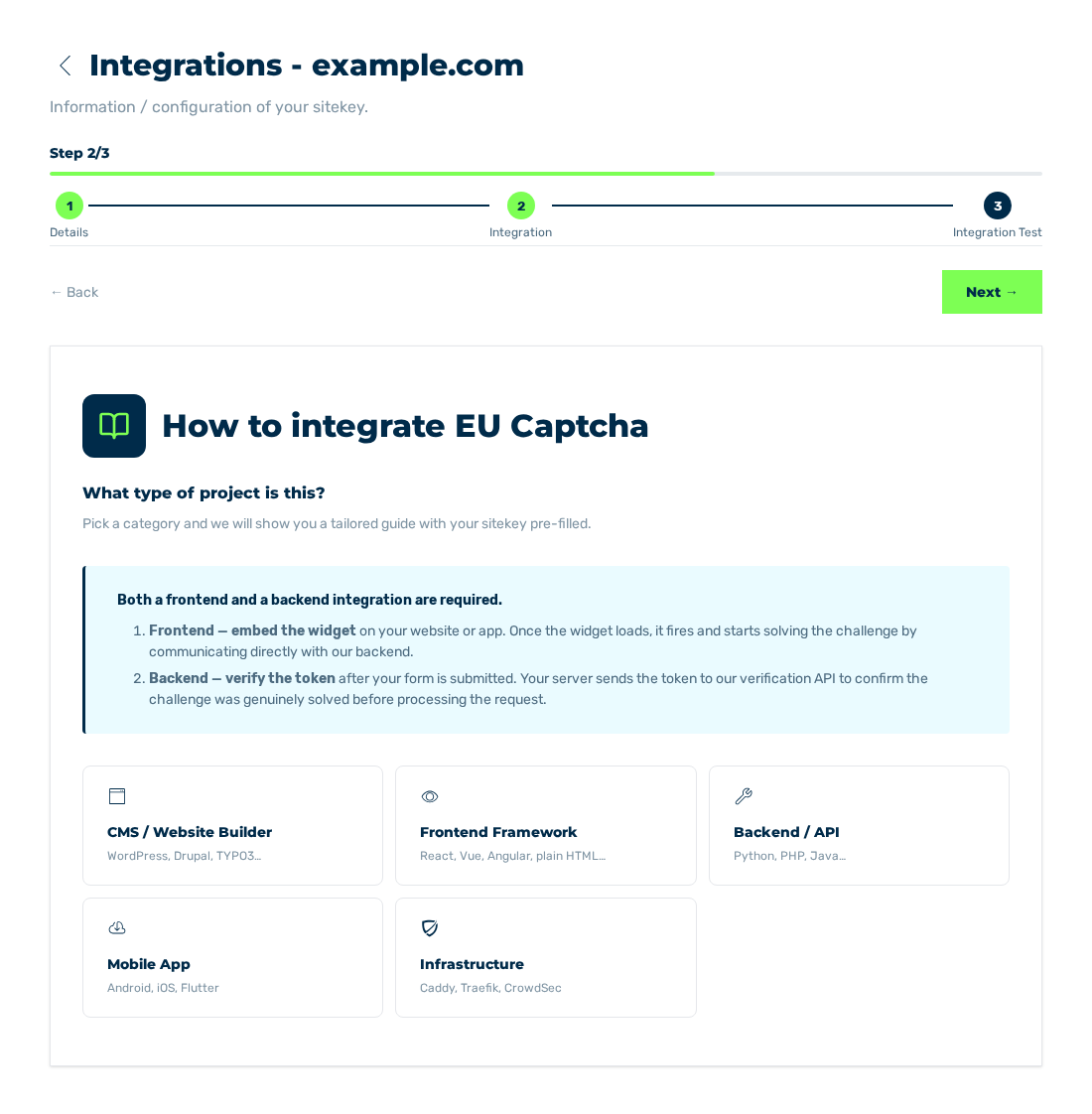
Integration view
Attention
At this time, the system does not prevent more than one sitekey for the same domain. Examine the list of the sitekeys and delete the double entries. See Two sitekeys for the same domain.
A sitekey without your own domain
Below the or try without a domain divider, the Use a demo sitekey button creates a sitekey with a generated demo domain. The description is No domain needed — explore the dashboard and integration flow first.
The system stays in the Dashboard view and shows the Sitekey created message with this text: Your sitekey is ready. Use the integration guide below to add EU CAPTCHA to your project. The new entry is highlighted in the Sitekey List list.
Open the dialog again
If you close the dialog, the Dashboard view shows the Protect your first website note. The description is Add a domain to start seeing data in your dashboard.
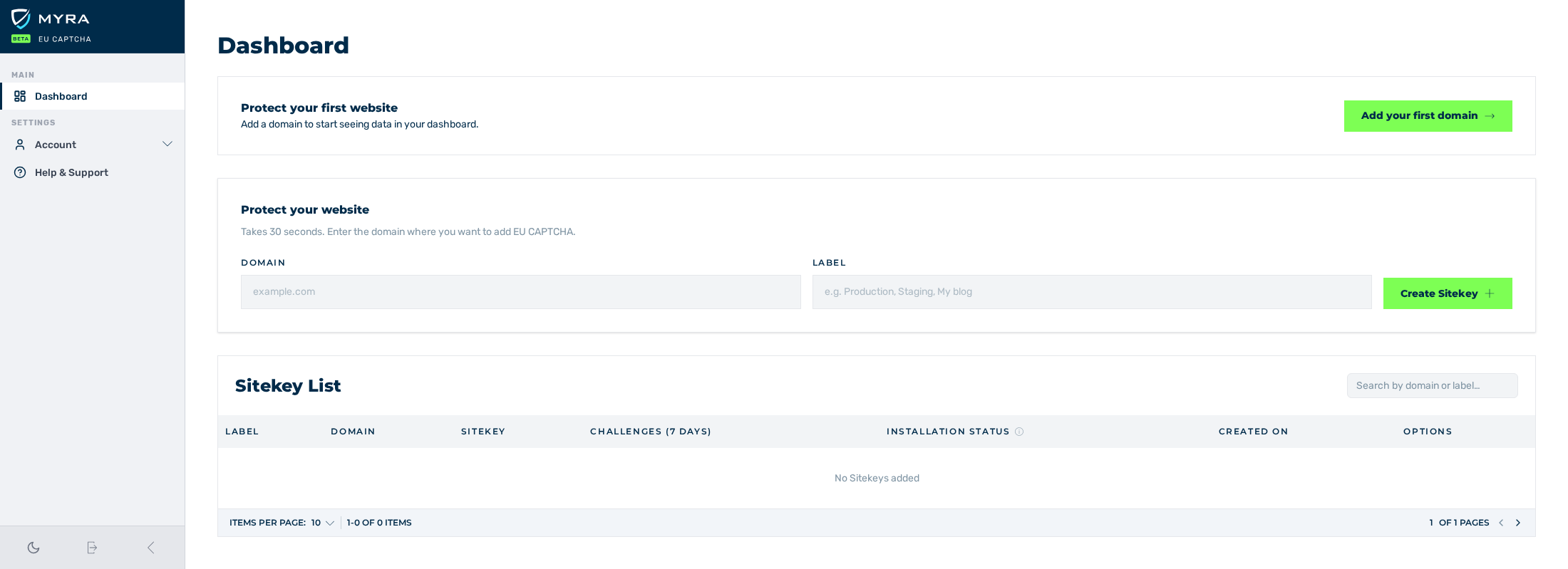
Dashboard view without a sitekey
- ► Click on the Add your first domain button.
- ➔ The Protect your first website dialog is shown again.
Protect your first website dialog
See Embedding the widget.