Creating a sitekey
For each domain that you want to protect, create a related sitekey. The sitekey connects the domain with Myra EU CAPTCHA and supplies the keys for the widget and for the server-side verification.
Creation of an additional sitekey
The following requirements are met:
- ☑ You are logged in to the customer portal.
- ☑ You know the domain that you want to protect.
Proceed as follows to create a subsequent sitekey:
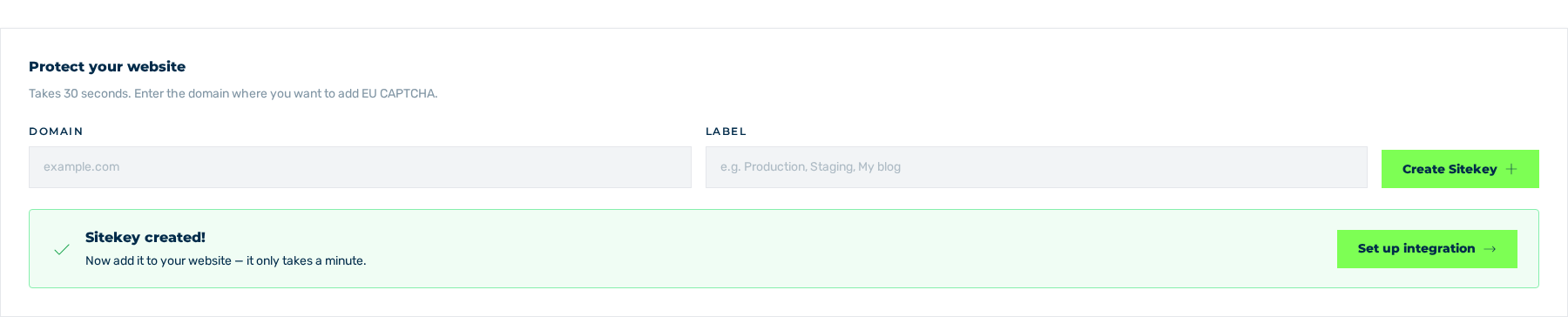
Protect your website area
- ► Open the Dashboard view and go to the Protect your website area. The description is Takes 30 seconds. Enter the domain where you want to add EU CAPTCHA.
- ► In the Domain field, enter the domain to protect, for example
example.com. - ► If required, enter a label in the Label field, for example
Production,Staging, orMy blog. - ► Click on the Create Sitekey button.
- ↳ The system creates the sitekey and shows the Sitekey created! message. The text is Now add it to your website — it only takes a minute. The system shows the new entry in the Sitekey List list.
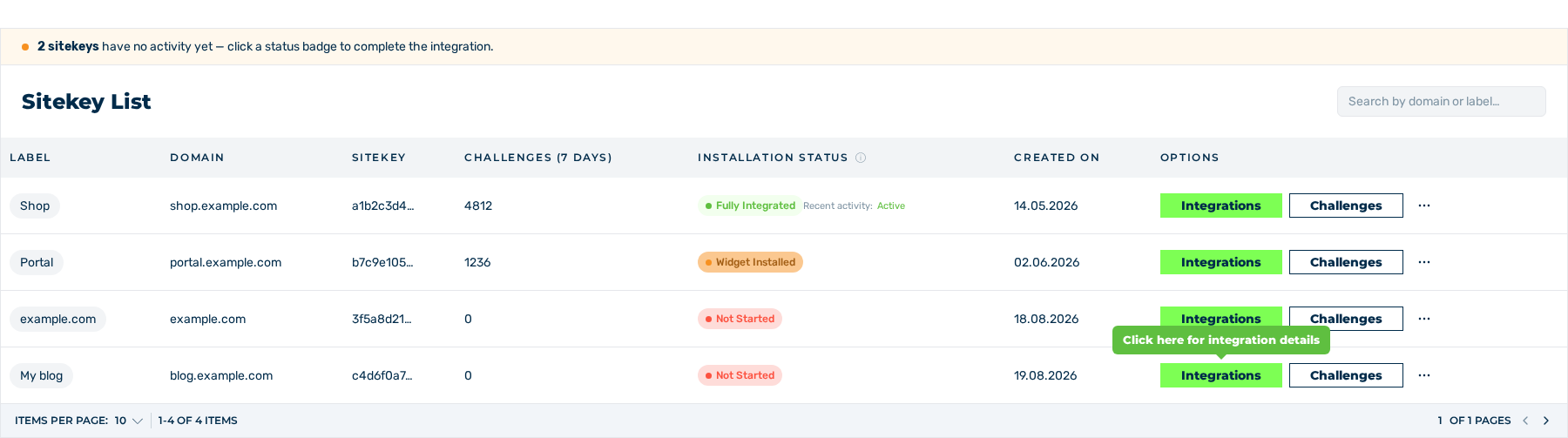
Sitekey List area with the new entry
- ► Click on the Set up integration button.
- ➔ The Details view of the new sitekey is shown.
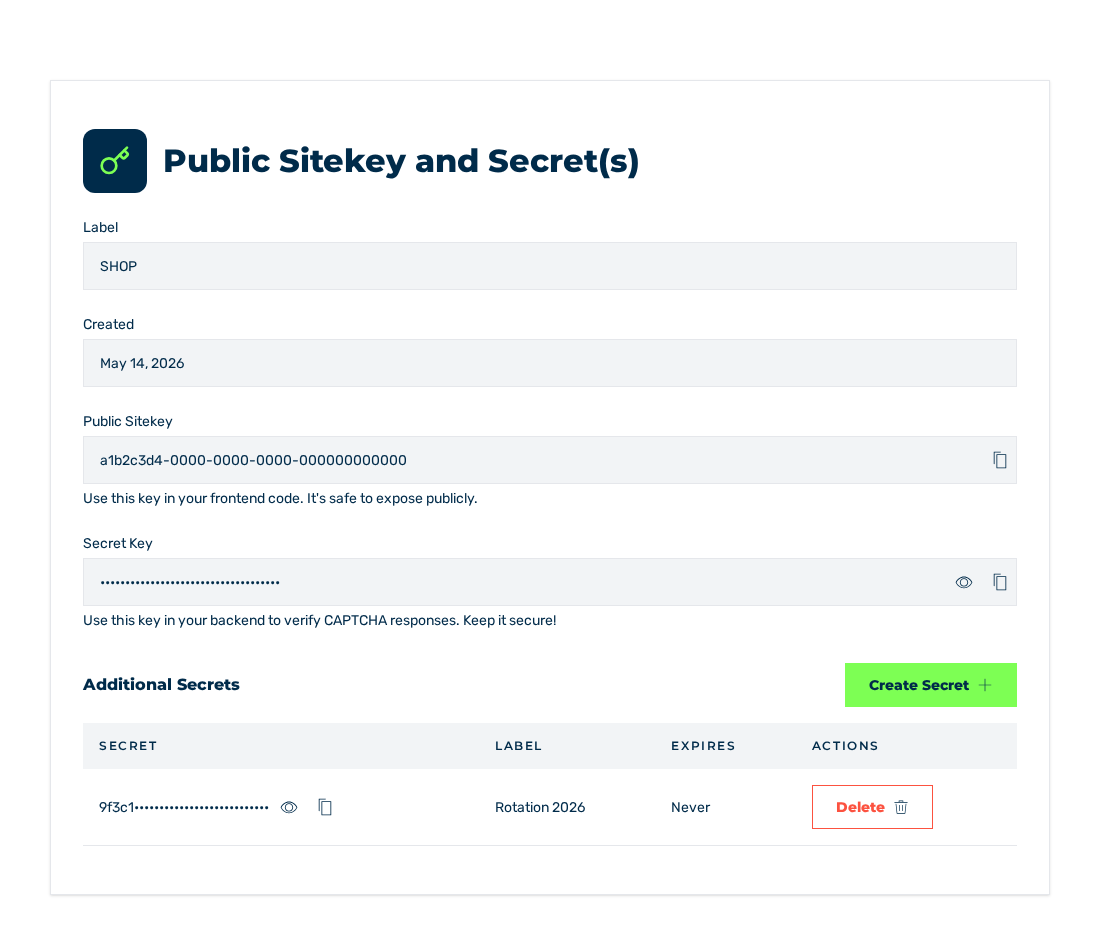
Details view
Verification of the input
The Domain field refuses incorrect input:
| Message | Cause |
|---|---|
| Please enter a domain. | The field is empty. |
| Please enter a valid domain name (e.g. example.com). | The input is not a valid domain name. |
An initial http:// or https:// and an attached path are removed from the input. Uppercase and lowercase have no effect: the system keeps the domain in lowercase.
Attention
At this time, the system does not prevent more than one sitekey for the same domain. Examine the list and delete the double entries. See Two sitekeys for the same domain.