Create an account
To use Myra EU CAPTCHA, you must have an account in the customer portal. You create it yourself. A credit card is not necessary.
The following requirements are met:
- ☑ You have access to an e-mail mailbox.
Proceed as follows to create an account:
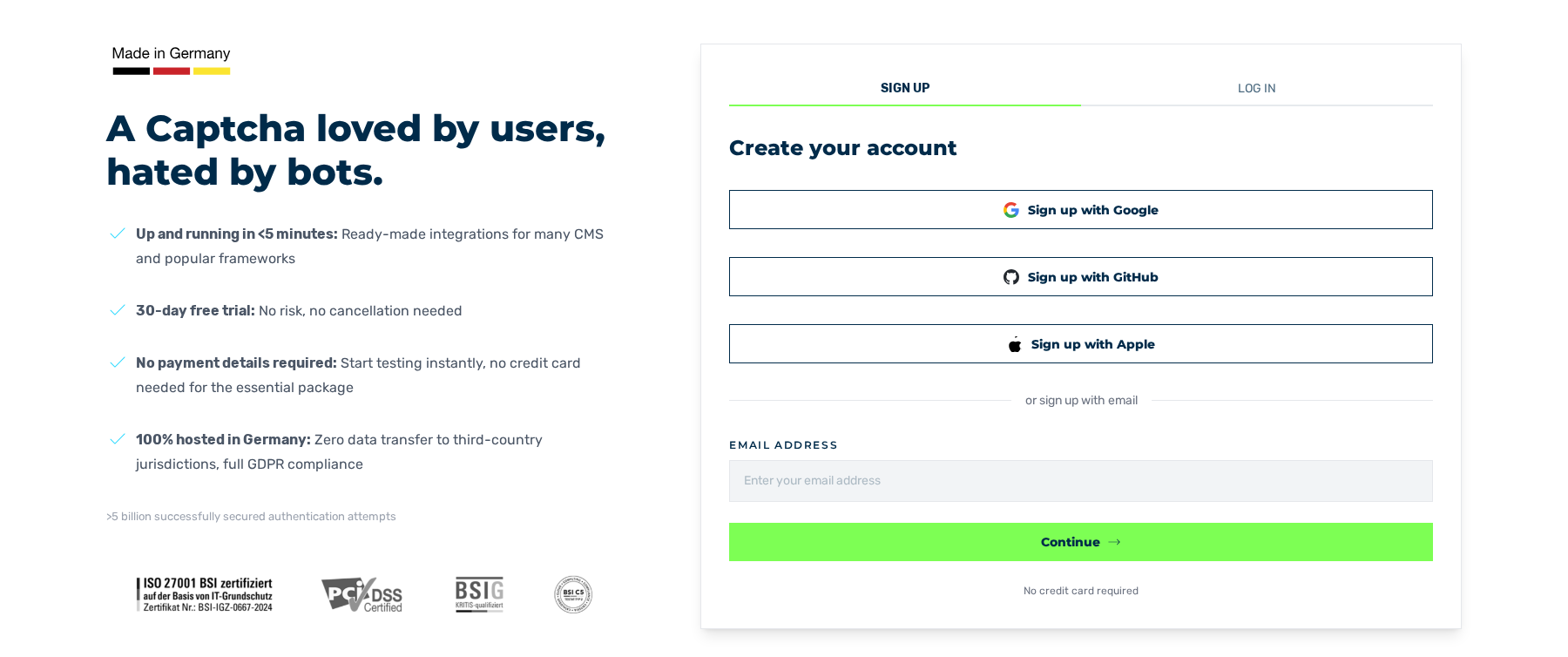
Create your account view
- ► Open the registration page of the customer portal.
- ► In the Email address field, enter your e-mail address.
- ► Click on the Continue button.
- ↳ The Complete your account view is shown.
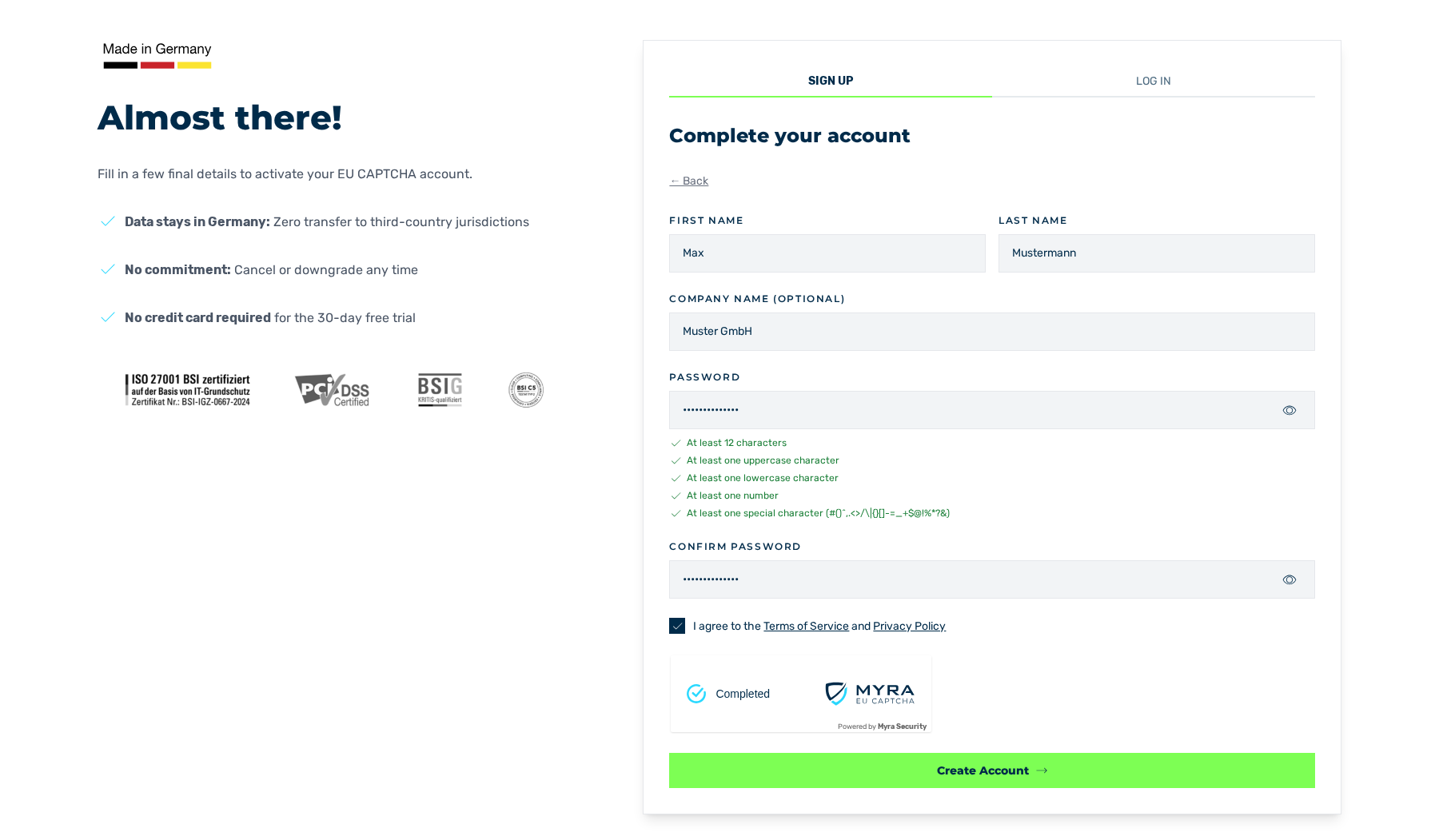
Complete your account view
- ► In the First name and Last name fields, enter your first name and your last name.
- ► If required, enter the name of your company in the Company name (optional) field.
- ► In the Password and Confirm password fields, enter the same password.
- ↳ Below the Password field, a checklist shows which rules the password obeys.
- ► Select the check box in front of I agree to the Terms of Service and Privacy Policy.
- ► Solve the EU CAPTCHA widget below the check box.
- ► Click on the Create Account button.
- ↳ The Verify your email view is shown. The system sends a six-digit confirmation code to the given e-mail address. The code is valid for 30 minutes.
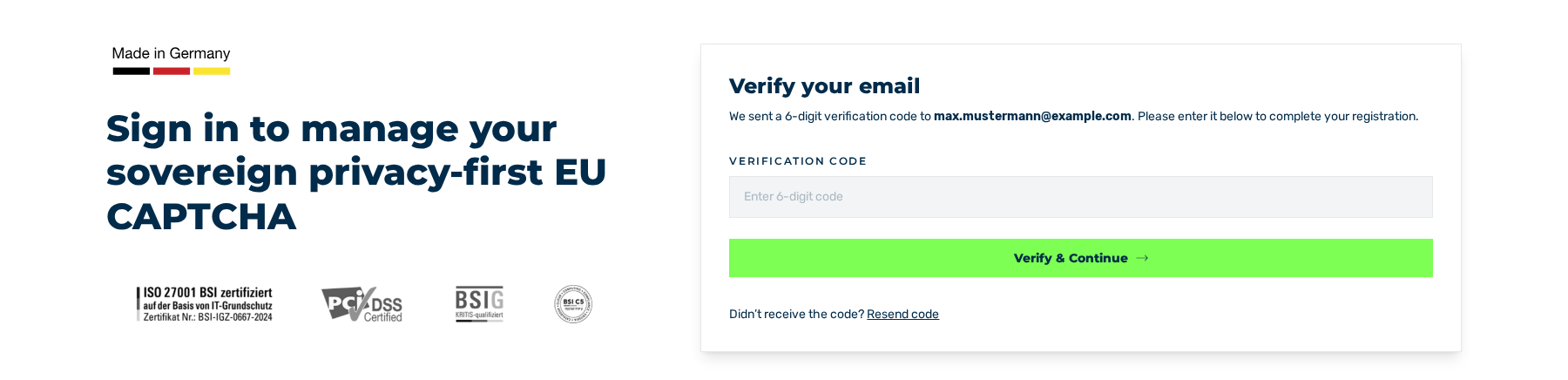
Verify your email view
- ► In the Verification code field, enter the code from the e-mail.
- ► Click on the Verify & Continue button.
- ➔ The account is created. You are logged in. The system shows the Dashboard view. The system sends an e-mail with the subject Welcome to Myra EU CAPTCHA and the links for the integration.
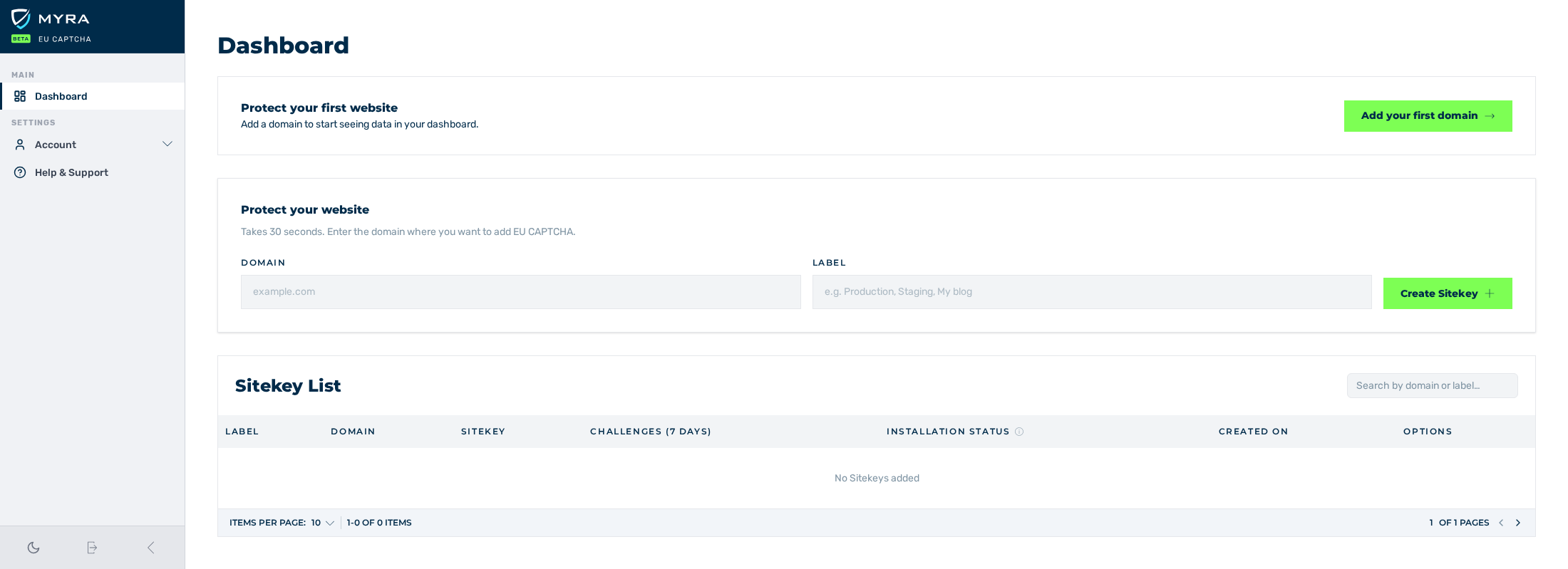
Dashboard view
The ← Back button takes you from the Complete your account view back to the entry of the e-mail address.
The password must obey the rules that follow:
| Rule | Condition |
|---|---|
| Length | Minimum 12 characters |
| Uppercase character | Minimum one character A to Z |
| Lowercase character | Minimum one character a to z |
| Number | Minimum one number 0 to 9 |
| Special character | Minimum one character from #()^,.<>/\|{}[]-=_+$@!%*?& |
If an account for the given e-mail address is already available, the view shows the An account with this email already exists. message. The view also gives the Log in and Forgot password? links.
If the confirmation code does not arrive, request it again with the Resend code button. The view shows the A new verification code has been sent to your email. message, and the new code is valid for 30 minutes again. An expired code causes the That code has expired. Choose “Resend code” below to get a new one. message.
From one IP address, the system accepts a maximum of 100 requests in one minute. This limit applies to the registration and to the request for a password reset e-mail together. The system refuses more requests with the 429 Too Many Requests status code. Wait 60 seconds before you try again.
Instead of an e-mail address and a password, you can create the account with these buttons:
- ■ Sign up with Google
- ■ Sign up with GitHub
- ■ Sign up with Apple
On Android devices, the Sign up with Apple button is not available.
The view contains no button for passkeys. A passkey can be used for the login only. See Create a passkey.
See Log in.