Assign and revoke the Org Admin role
The Org Admin role permits a member to manage other members and to change the settings for SAML and SSO.
The following requirements are met:
- ☑ Your account has the Org Admin role.
- ☑ The member is already part of the organization.
Note
An Org Admin cannot change the own role and cannot remove the own account. A different Org Admin makes these changes.
Assign the role
Proceed as follows to assign the role:
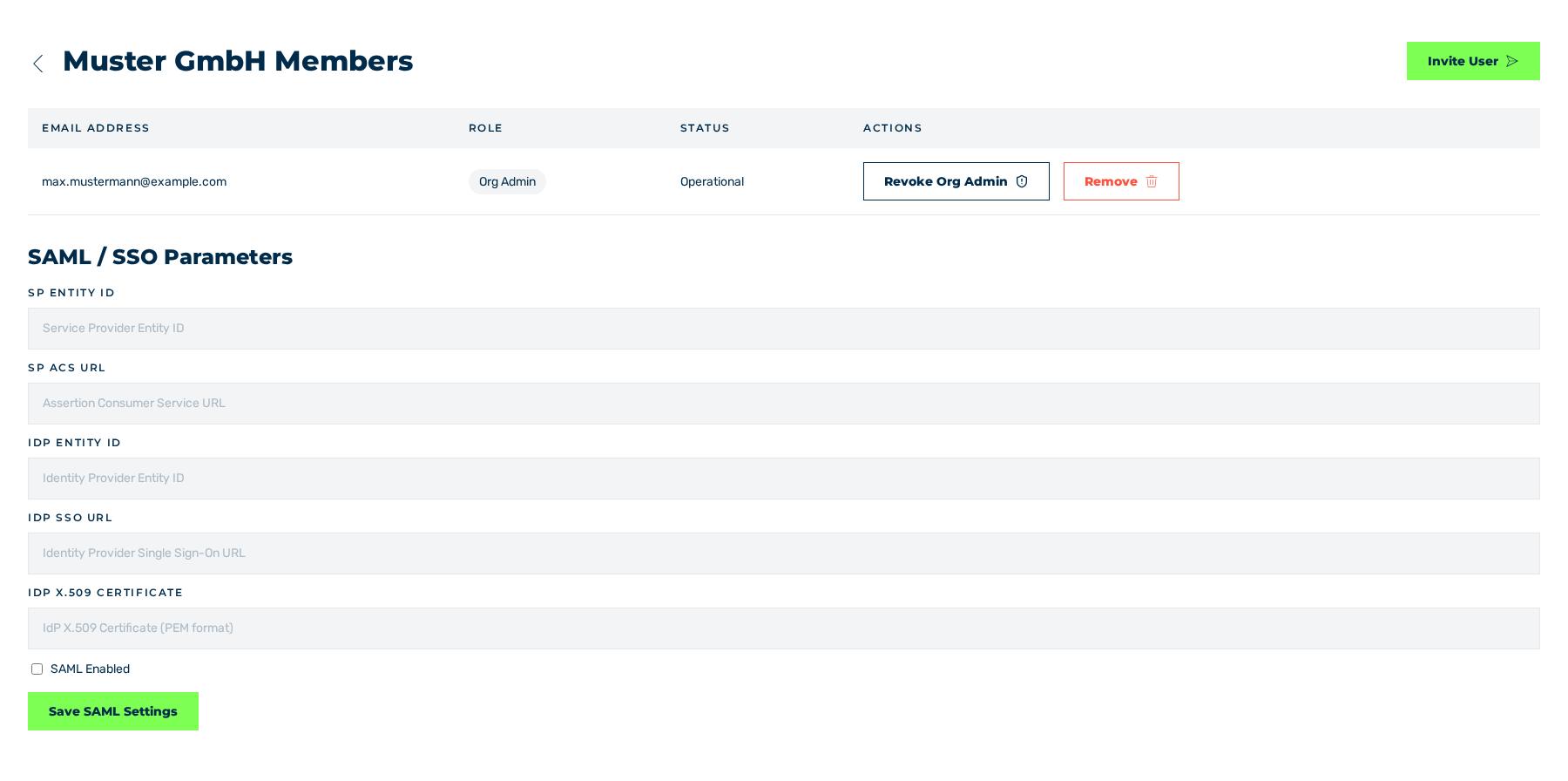
Organization view
- ► In the sidebar, open the Account › Profile entry and click on the Manage Members button in the Organization area.
- ► In the row of the member, click on the Make Org Admin button in the Actions column.
- ↳ The Grant Org Admin dialog is shown.
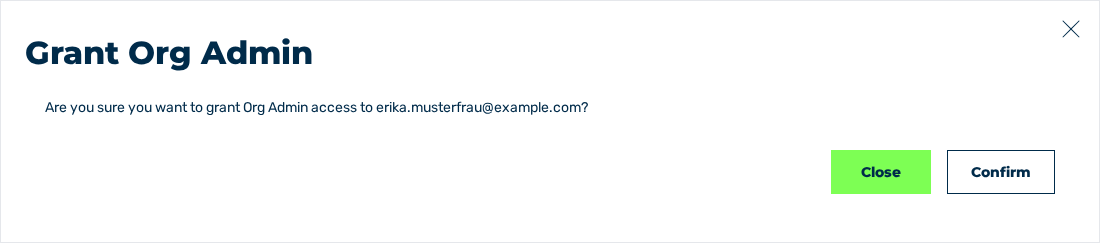
Grant Org Admin dialog
- ► Click on the Confirm button.
- ➔ The system assigns the role and closes the dialog. The Role column shows the Org Admin value.
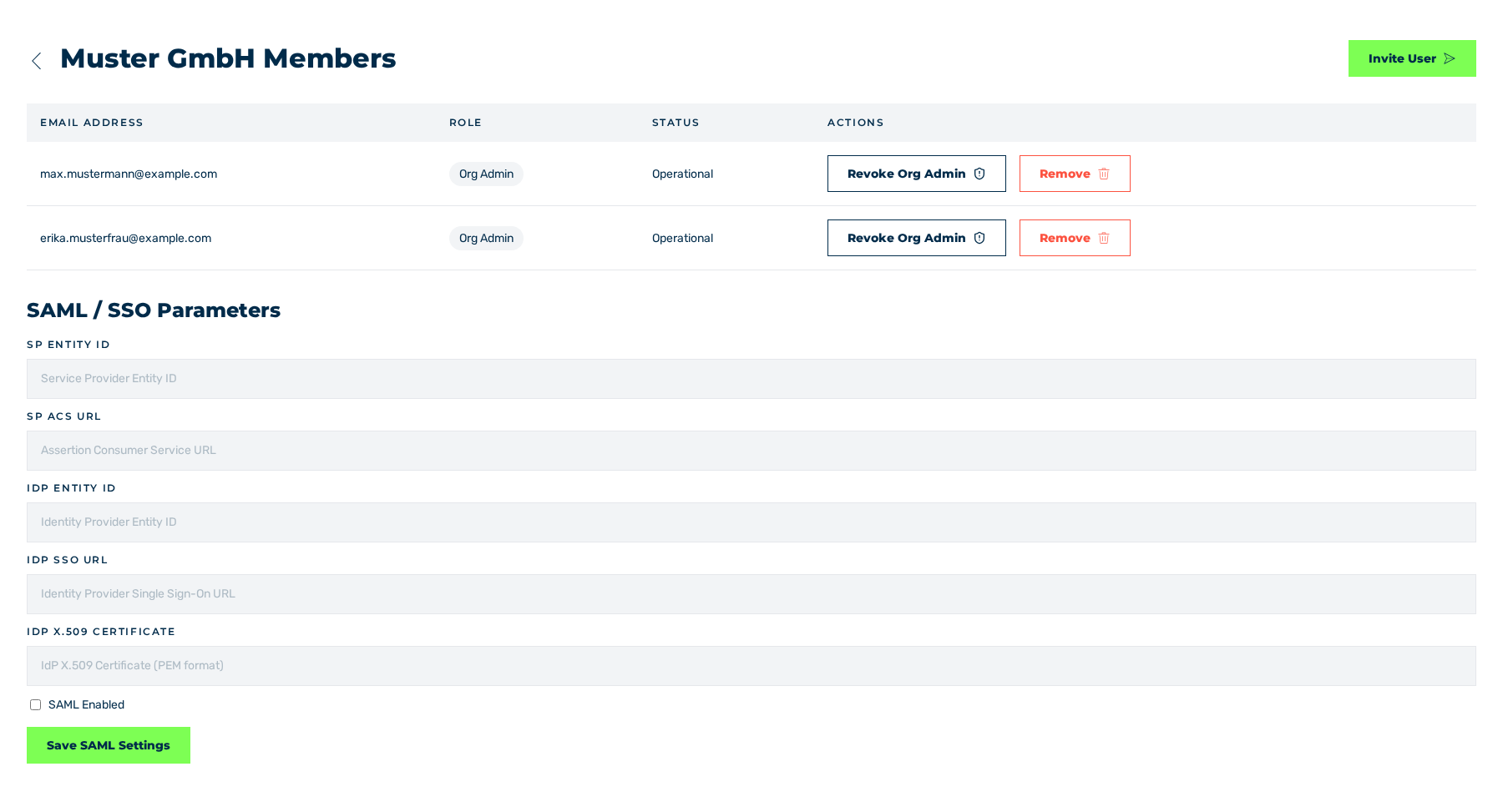
Organization view with the role that was assigned
To stop the procedure, click on the Close button.
Revoke the role
Proceed as follows to revoke the role:
Organization view with the role that was assigned
- ► In the row of the member, click on the Revoke Org Admin button in the Actions column.
- ↳ The Revoke Org Admin dialog is shown.
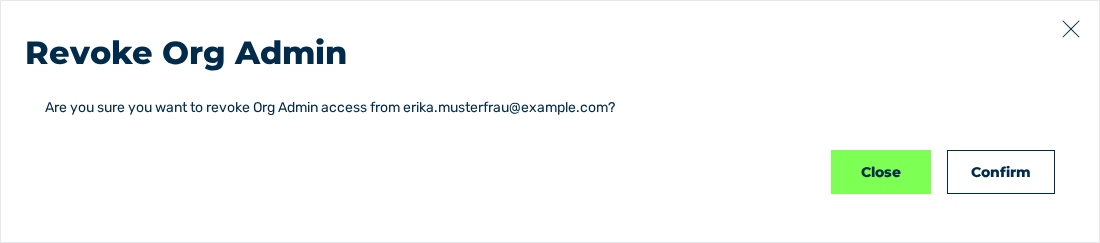
Revoke Org Admin dialog
- ► Click on the Confirm button.
- ➔ The system revokes the role and closes the dialog. The Role column shows the Member value.
Organization view without the role
See Removing a member.
See Organization view.