Removing a member
You remove a member from your organization. Thus the account loses its membership of the organization. Permissions of the account for single sitekeys remain in place. Revoke these permissions separately. See Revoke the access to a sitekey.
The following requirements are met:
- ☑ Your account has the Org Admin role.
- ☑ The member is part of the organization.
Proceed as follows to remove a member:
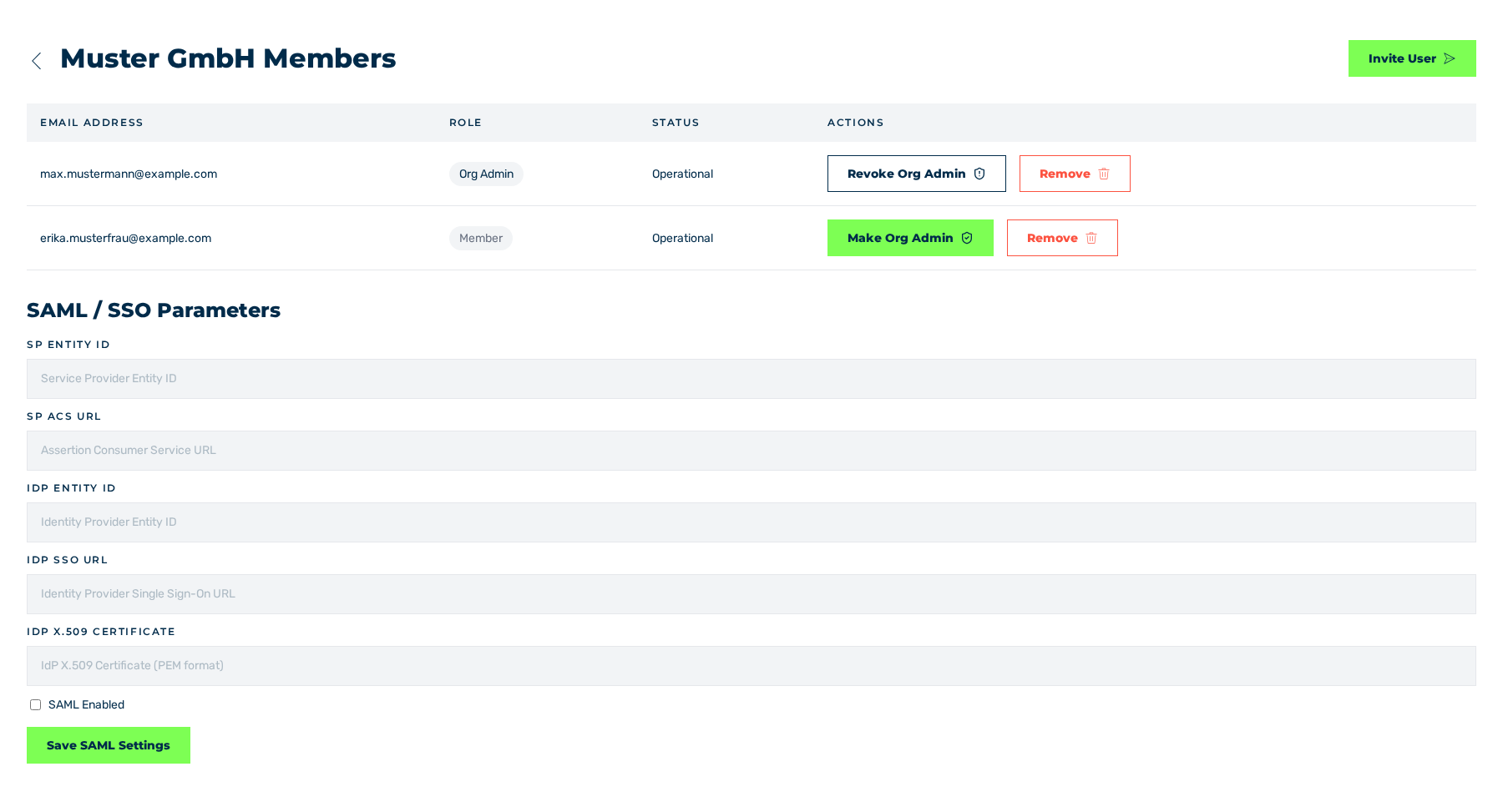
Organization view with two members
- ► In the sidebar, open the Account › Profile entry and click on the Manage Members button in the Organization area.
- ► In the row of the member, click on the Remove button in the Actions column.
- ↳ The Remove Member dialog is shown. The dialog gives the e-mail address of the member.
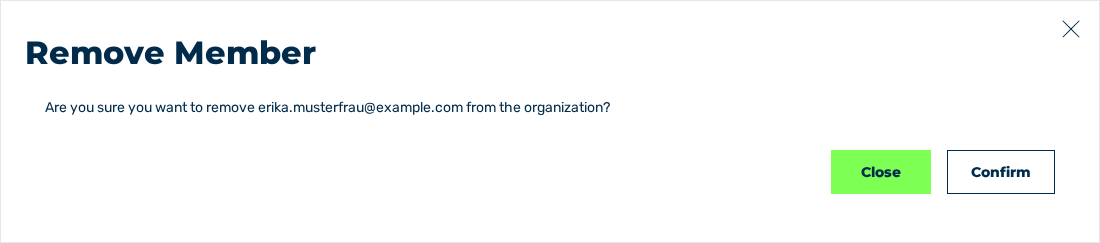
Remove Member dialog
- ► Click on the Confirm button.
- ➔ The system removes the member and closes the dialog. The entry is removed from the table.
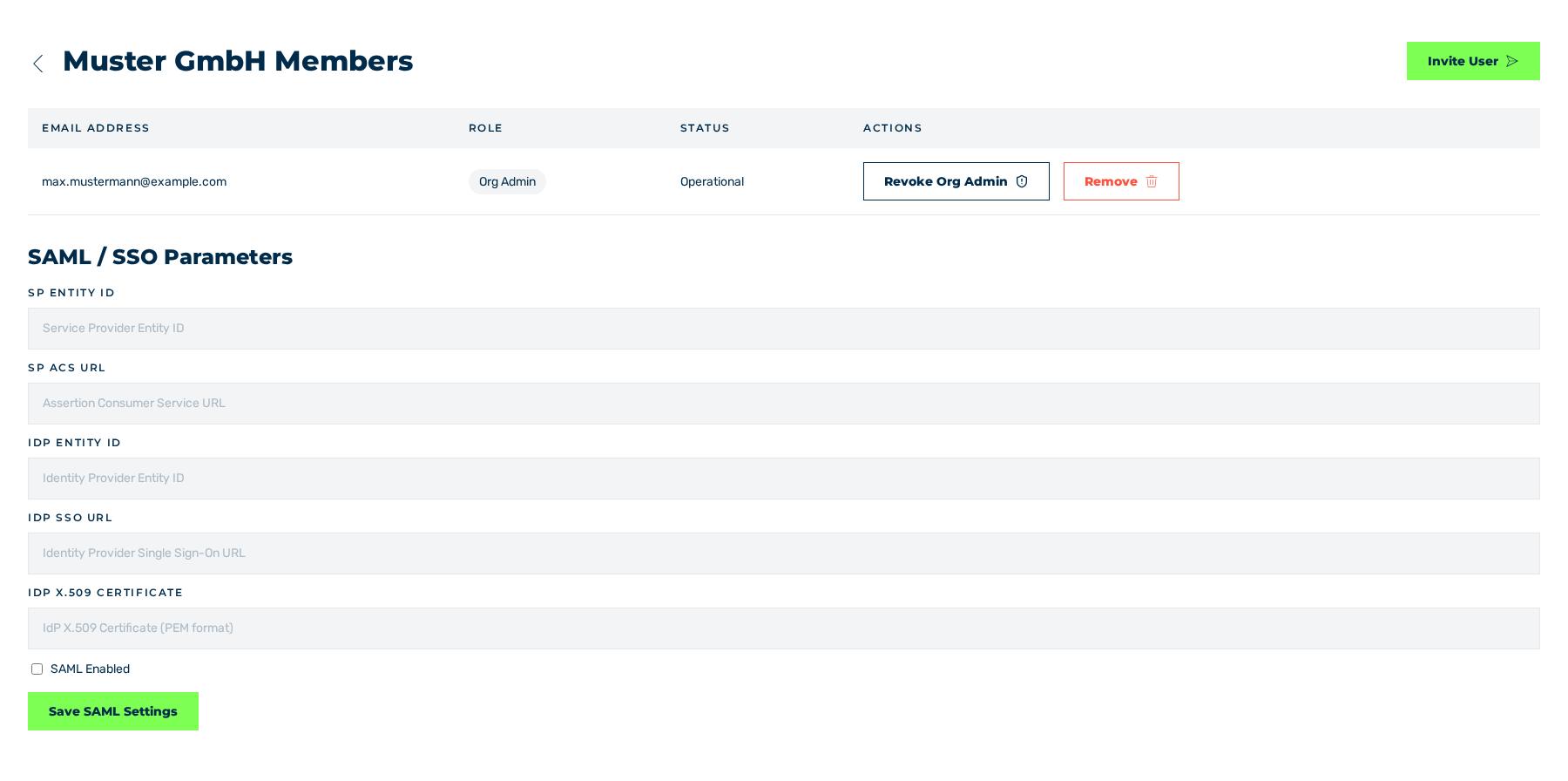
Organization view without the member that was removed
To stop the procedure, click on the Close button.
See Assign and revoke the Org Admin role.
See Organization view.