Cancel a subscription
You cancel a subscription in the Subscription History tab. The cancellation ends the subscription immediately. There is no more billing.
The following requirements are met:
- ☑ You are logged in to the customer portal.
- ☑ A subscription is active for your account.
Proceed as follows to cancel a subscription:
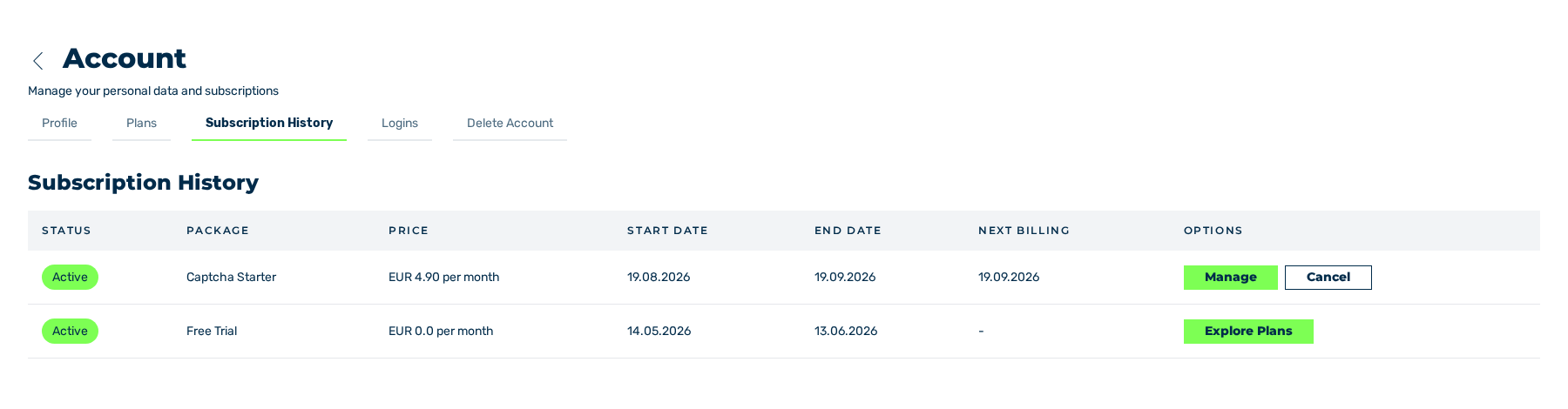
Subscription History tab with a plan that was booked
- ► In the sidebar, open the Account › Profile entry and go to the Subscription History tab.
- ► In the row of the subscription, click on the Cancel button.
- ↳ The Cancel subscription dialog is shown. The dialog gives the plan and the end of the period you paid for.
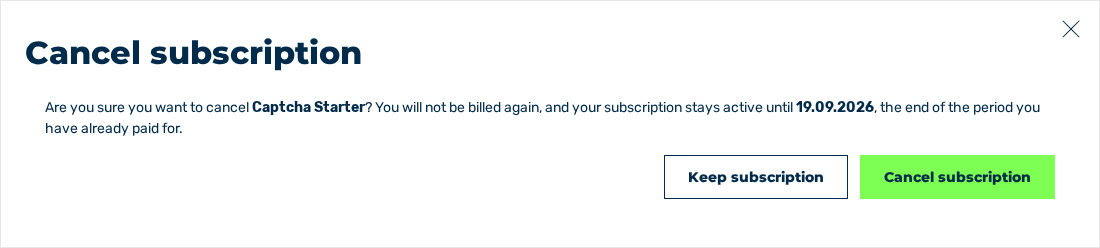
Cancel subscription dialog
- ► Click on the Cancel subscription button.
- ➔ The system ends the subscription immediately. The Status column shows the Expired mark. The Next billing column shows the end of the period that was paid for last.
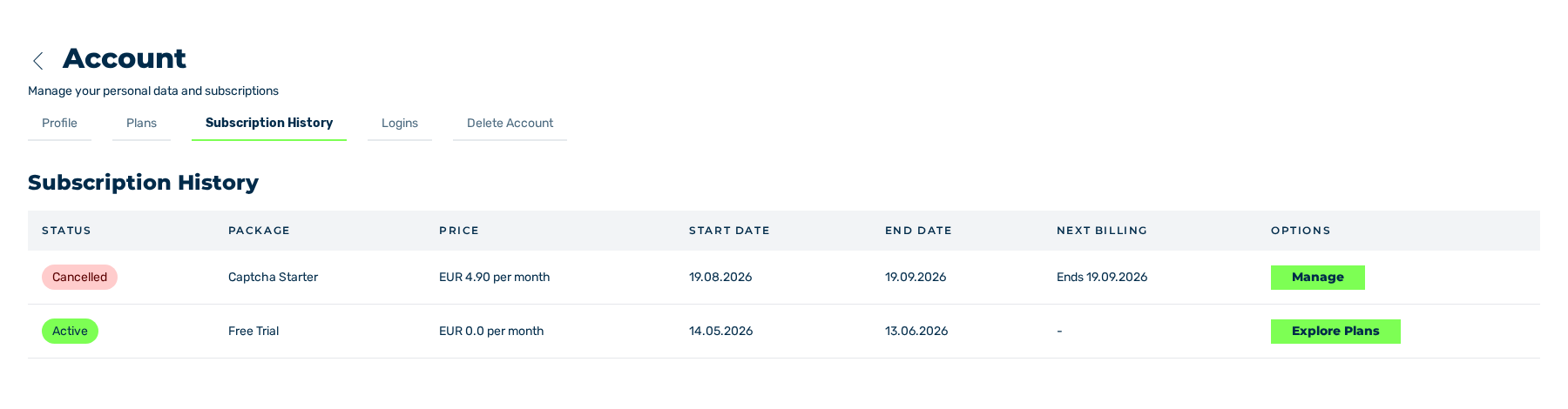
Subscription History tab with the subscription that was cancelled
Attention
With the end of the subscription, the system sets the sitekeys to the trial_expired state. The embedded widgets remain in place but no longer block any requests. The customer portal shows neither a banner nor a lock for this. See Trial period.
Cancel a booking from the trial period
A plan that you booked during the trial period has the Committed mark and starts only after the end of the trial period. To cancel this booking, use the Cancel commitment button.
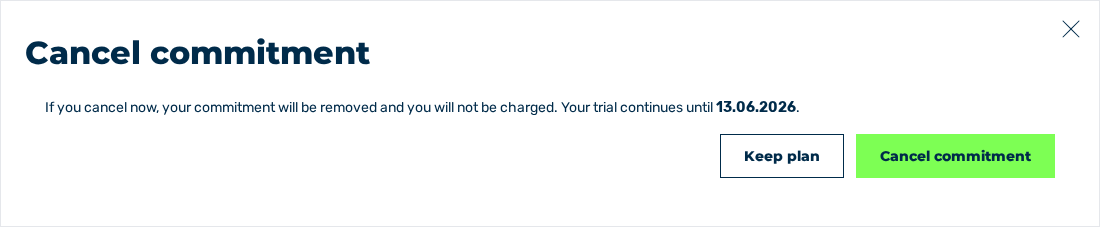
Cancel commitment dialog
- ► In the row of the subscription, click on the Cancel commitment button.
- ↳ The Cancel commitment dialog is shown.
- ► Click on the Cancel commitment button.
- ➔ The system withdraws the booking. There is no billing. The Status column shows the Cancelled mark. The Next billing column shows the
Endsvalue with the end of the trial period. The trial period continues until its end.
Note
The Keep subscription and Keep plan buttons close the dialog and do not cancel.
See Delete the account.