Drupal
The module for Drupal protects the forms of the core and the forms of the Webform module. The widget is loaded from the CDN. Your own JavaScript source code is not necessary.
Requirements
The following requirements are met:
| Requirement | Value |
|---|---|
| Drupal | version 10 or 11 |
| Permission | administer eu captcha |
| Access | Command line with Drush |
Install the module
Proceed as follows to install the module:
- ► Put the module in the
web/modules/custom/eu_captcha/directory. - ► Activate the module on the command line:
- ► In the administration area, open the Administration → Configuration → System → EU-Captcha entry.
- ➔ The
/admin/config/system/eu-captchasettings page is shown.
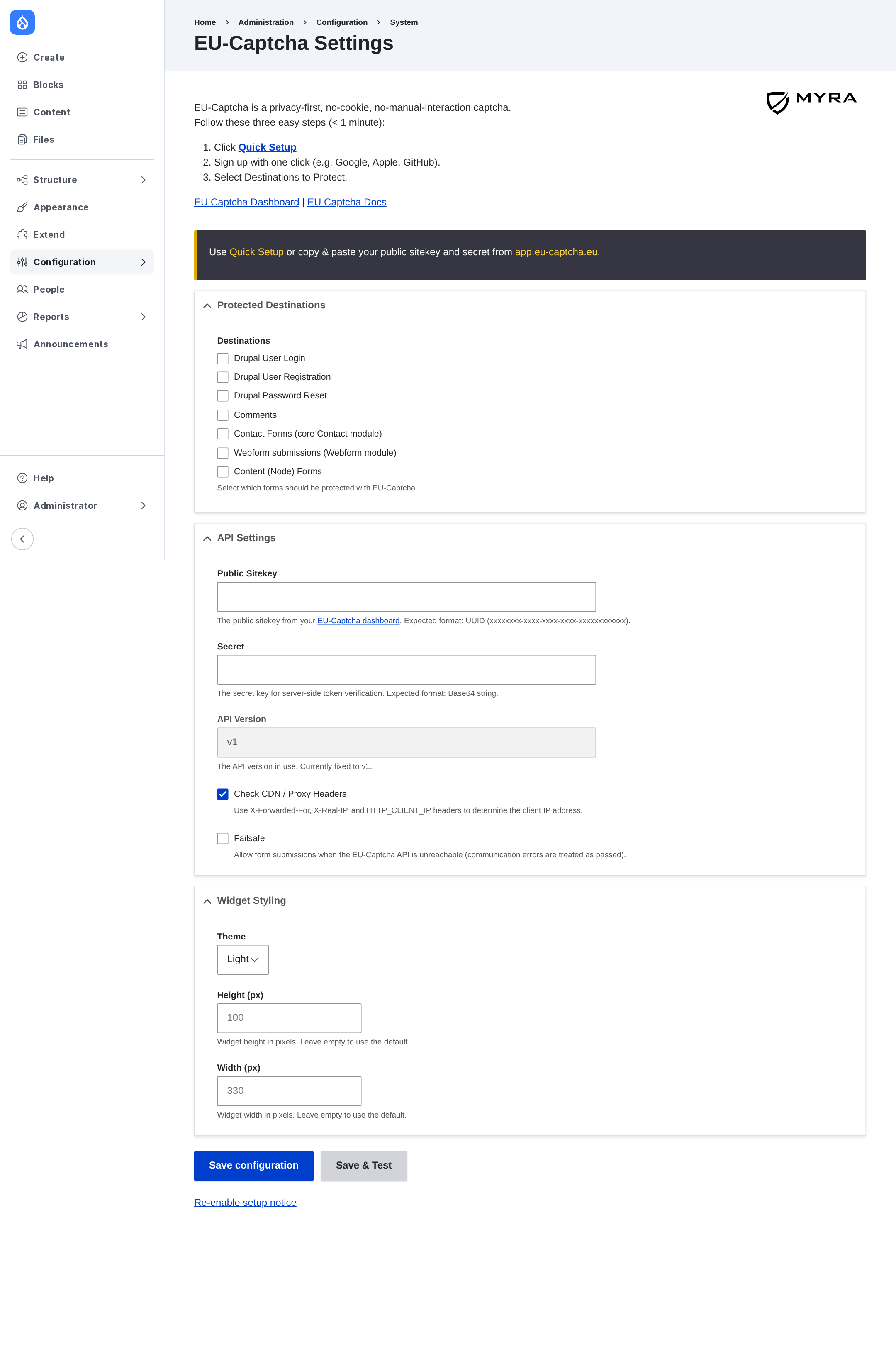
EU-Captcha Settings page
Store the credentials
Proceed as follows to store the credentials:
- ► On the settings page, click on the Quick Setup button.
- ↳ A dialog with the login of Myra EU CAPTCHA is shown.
- ► Log in with Google, Apple, or GitHub.
- ➔ The module applies the public sitekey and the secret.
As an alternative, enter the available credentials manually:
| Field | Contents |
|---|---|
| Public Sitekey | Public key in the UUID format. The widget in the frontend uses this value. |
| Secret | Secret key in the Base64 format for the server-side verification. After the save operation, Drupal does not show the value again. |
The module examines the format of the two values immediately during the input.
Options of the API
These options are available:
| Option | Effect |
|---|---|
| Check CDN / Proxy Headers | Reads the true IP address of the visitor from the X-Forwarded-For, X-Real-IP, or HTTP_CLIENT_IP headers. Activate the option if Drupal is behind a load balancer or a CDN. By default, the check box is selected. |
| Failsafe | If the check box is selected, the module permits a transmission if the API of Myra EU CAPTCHA is not reachable. If the check box is cleared, the module blocks the transmission when an API error occurs. By default, the check box is cleared. |
Widget styling
EU-Captcha Settings page
In the Widget Styling area, you set the display of the widget:
| Option | Effect |
|---|---|
| Theme | Light or Dark. The default is Light. |
| Height (px) | Height of the widget in pixels, minimum 48. Empty uses the default. |
| Width (px) | Width of the widget in pixels, minimum 1. Empty uses the default. |
The Save & Test button saves the settings and then verifies the sitekey and the secret with the API.
Select the forms
Proceed as follows to select the protected forms:
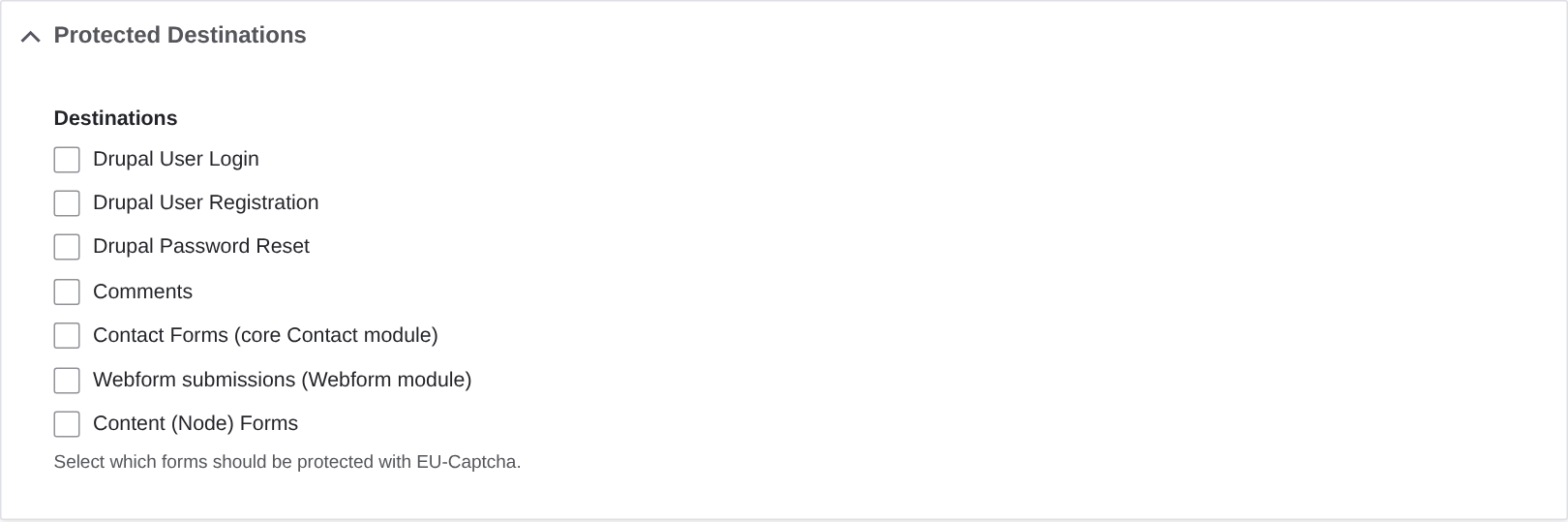
Protected Destinations area
- ► In the Protected Destinations area, select the applicable destinations.
- ► Click on the Save configuration button.
- ➔ The widget is shown in the selected forms.
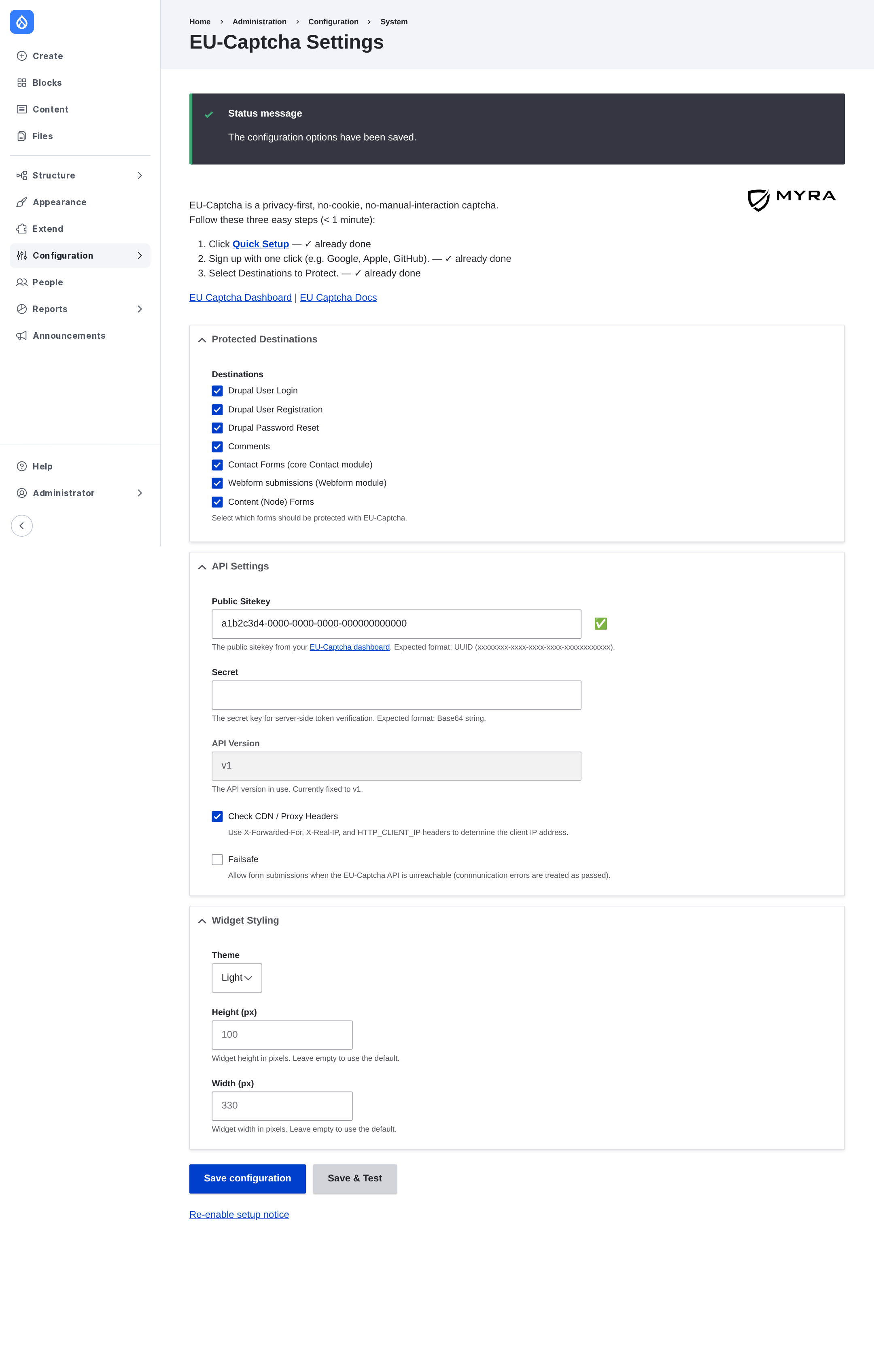
Settings page after the save operation
These destinations are available:
| Destination | Label | Range |
|---|---|---|
user_login |
Drupal User Login | Login form of Drupal |
user_register |
Drupal User Registration | Registration form of Drupal |
user_pass |
Drupal Password Reset | Form for the password reset |
comment |
Comments | All comment forms (comment_{bundle}_form) |
contact |
Contact Forms (core Contact module) | Forms of the Contact core module (contact_message_{id}_form) |
webform |
Webform submissions (Webform module) | Forms of the Webform module (webform_submission_{id}_add_form) |
node |
Content (Node) Forms | Forms for content (node_{type}_form) |
Permission
| Permission | Effect |
|---|---|
administer eu captcha |
Access to the settings page, to Quick Setup, and to the notice bar in the administration area. Give the permission only to roles that you trust. |
Notice bar
While no sitekey is saved or no destination is selected, Drupal shows a notice bar in the administration area. Each user can hide the bar with the Dismiss button. The bar is removed permanently as soon as a sitekey and a minimum of one destination are saved.

Notice bar in the administration area
To show the notice bar again, click on the Re-enable setup notice link at the end of the settings page.
Sequence of the verification
- The module loads
verify.jsfrom the CDN and adds a<div data-sitekey="…">element to each protected form. - During the transmission, the widget adds the hidden
eu-captcha-responsefield. - The server sends the token, the sitekey, the secret, and the IP address of the visitor to
https://api.eu-captcha.eu/v1/verify. The{"success": true}response permits the transmission. Each other response makes a validation error in the form.
See Widget not detected.