Changing the e-mail address
You change the e-mail address of your account in the Profile tab. The change is confirmed in two steps: first with the previous address, then with the new address. Only the second step makes the new address effective.
The following requirements are met:
- ☑ You are logged in to the customer portal.
- ☑ You have access to the mailboxes of the previous and of the new e-mail address.
Proceed as follows to change the e-mail address:
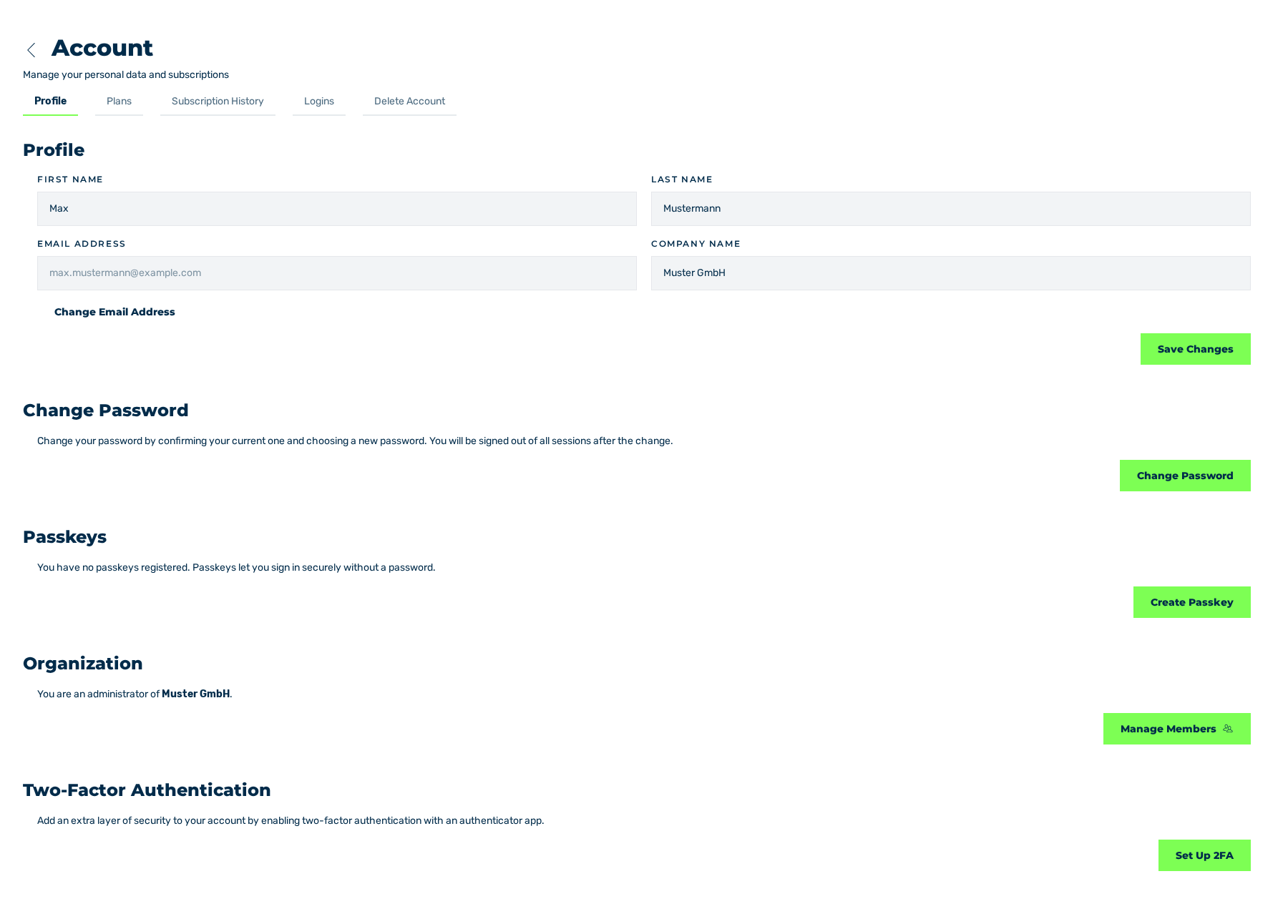
Profile tab
- ► In the sidebar, open the Account › Profile entry.
- ► Click on the Change Email Address button.
- ↳ The Change Email Address dialog is shown. First, the dialog asks for your current password.
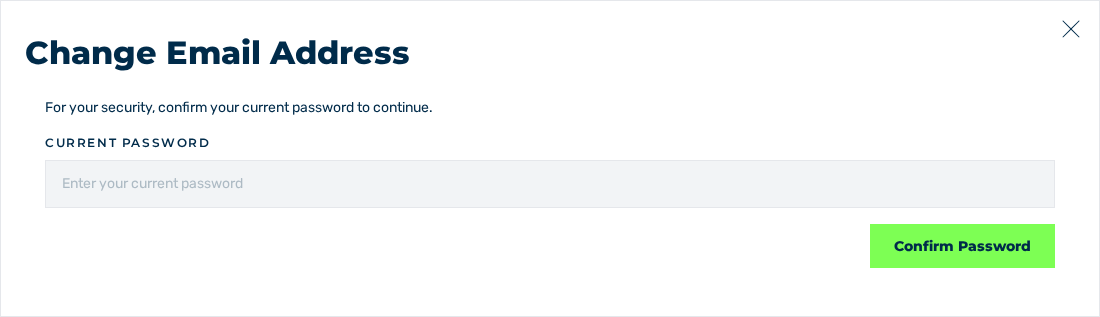
Change Email Address dialog
- ► In the Current password field, enter your current password.
- ► Click on the Confirm Password button.
- ↳ The dialog shows the field for the new e-mail address. The text gives the mailbox that receives the confirmation.
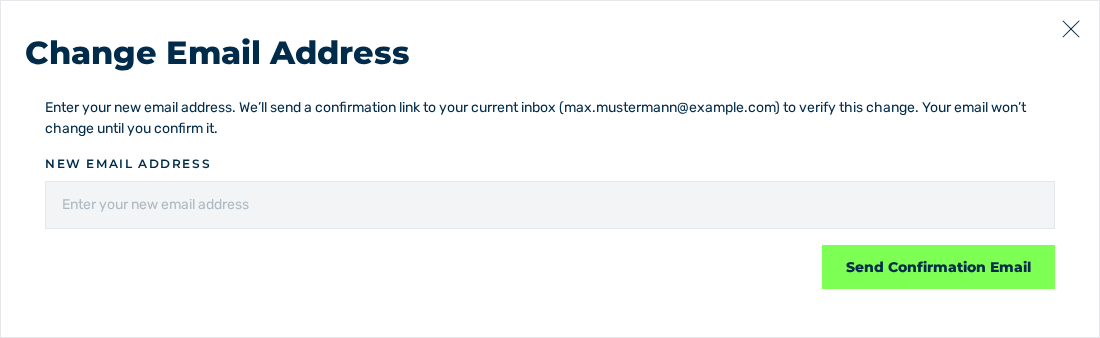
Change Email Address dialog with the New email address field
- ► In the New email address field, enter the new e-mail address.
- ► Click on the Send Confirmation Email button.
- ➔ The system requests the change and shows the Email change requested message with the Check your current inbox to confirm the change. text.
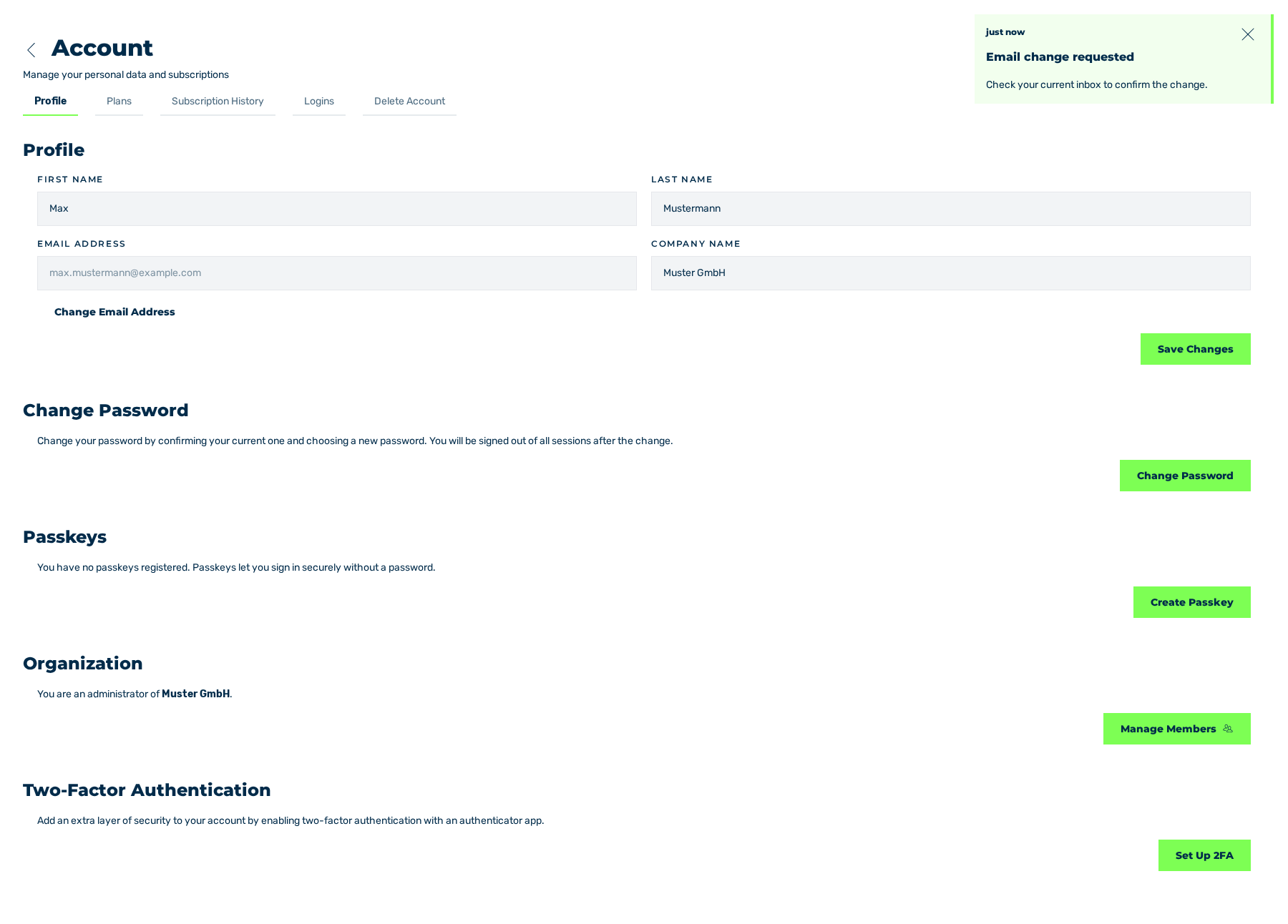
Profile tab with the Email change requested message
- ► Open the mailbox of the previous address and click on the Yes, I Requested This Change link in the e-mail.
- ↳ The Email Change page opens with the Email change confirmed message. The system logs you out of all sessions and sends a second e-mail to the new address.
- ► Open the mailbox of the new address and click on the Confirm My New Email Address link in the e-mail.
- ➔ The Email Change page shows the Your email has been changed message. The new e-mail address is effective. The previous address gets an e-mail with the subject Your Myra EU CAPTCHA Email Address Has Been Changed.
Until the second step is complete, the previous e-mail address stays applicable. During this time, log in with the previous address.
The first e-mail also contains the Cancel this request immediately. link. If you did not request the change, then this link cancels the request. The Email Change page then shows the Email change cancelled message.
Limits of the change
The following limits apply:
| Limit | Value |
|---|---|
| Validity of the links in the two e-mails | 30 minutes. Each link is valid one time. |
| Validity of the password confirmation in the dialog | 5 minutes. After that, the dialog asks for the password again. |
| Failed password attempts | 3 failed attempts in 15 minutes lock the dialog for the account. The lock ends after 15 minutes at the latest. |
| Requests for each account | 3 requests in 24 hours at most. |
| Waiting time after a completed change | 7 days without a new request. |
If the link of the second step has expired, then the complete request is void, and the address stays unchanged.
Messages
The following messages can occur:
| Message | Cause |
|---|---|
| Please enter your current password. | The Current password field is empty. |
| The password is incorrect. | The password you entered is incorrect. |
| Your confirmation expired. Please enter your password again. | The password confirmation is older than 5 minutes. The dialog asks for the password again. |
| Please enter a valid email address. | The New email address field is empty or does not contain a valid e-mail address. |
| This is already your registered email. | The new address is the previous address. |
| This email address cannot be used. | The address is incorrect or already in use. The message does not tell the two causes apart. |
| We could not send the verification email. Please try again. | The dispatch of the first e-mail failed. |
| Too many email change requests. Please try again later. | The count of the requests or the waiting time after a change is reached. |
| Too many attempts. Please try again later. | Three failed password attempts in 15 minutes. |
| This link has expired | The Email Change page shows the message when a link is older than 30 minutes. |
| This link is no longer valid | The Email Change page shows the message when a link has already been used or is invalid. |