TYPO3
The extension for TYPO3 protects the login in the backend, the login in the frontend with EXT:felogin, and the forms of the EXT:form form framework.
Requirements
The following requirements are met:
| Requirement | Value |
|---|---|
| TYPO3 | version 14 |
| Extensions | felogin for the login in the frontend, form for the form framework |
| Permission | Administration rights in TYPO3 |
Install the extension
Proceed as follows to install the extension:
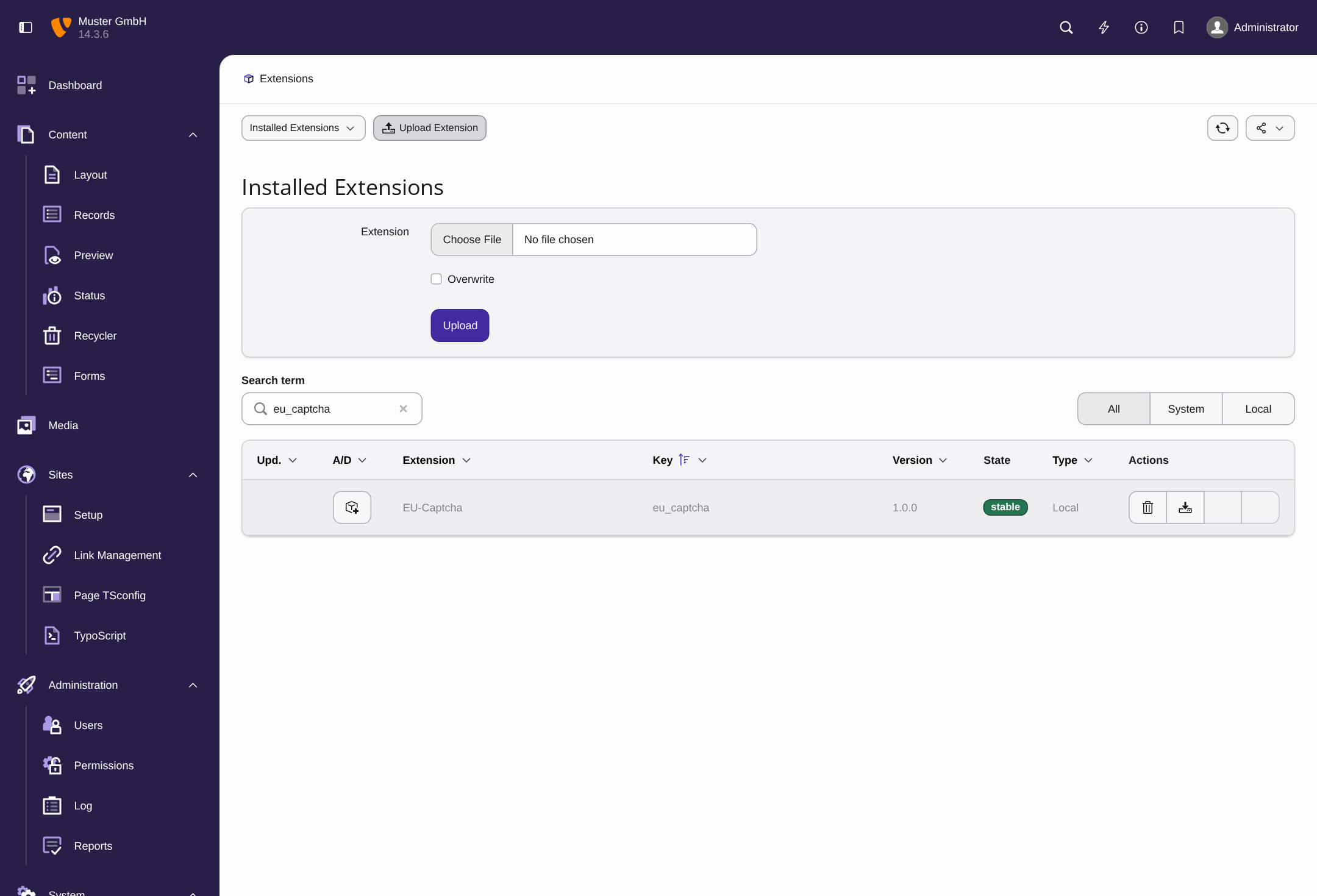
Extensions module with the open form for the upload
- ► In the Integration view, click on the Download zip button.
- ► In TYPO3, open the System → Extensions module.
- ► Click on the Upload Extension button.
- ► Select the archive and click on the Upload button.
- ↳ TYPO3 shows Extension Upload and puts the extension in the Installed Extensions list. The extension is not enabled yet.
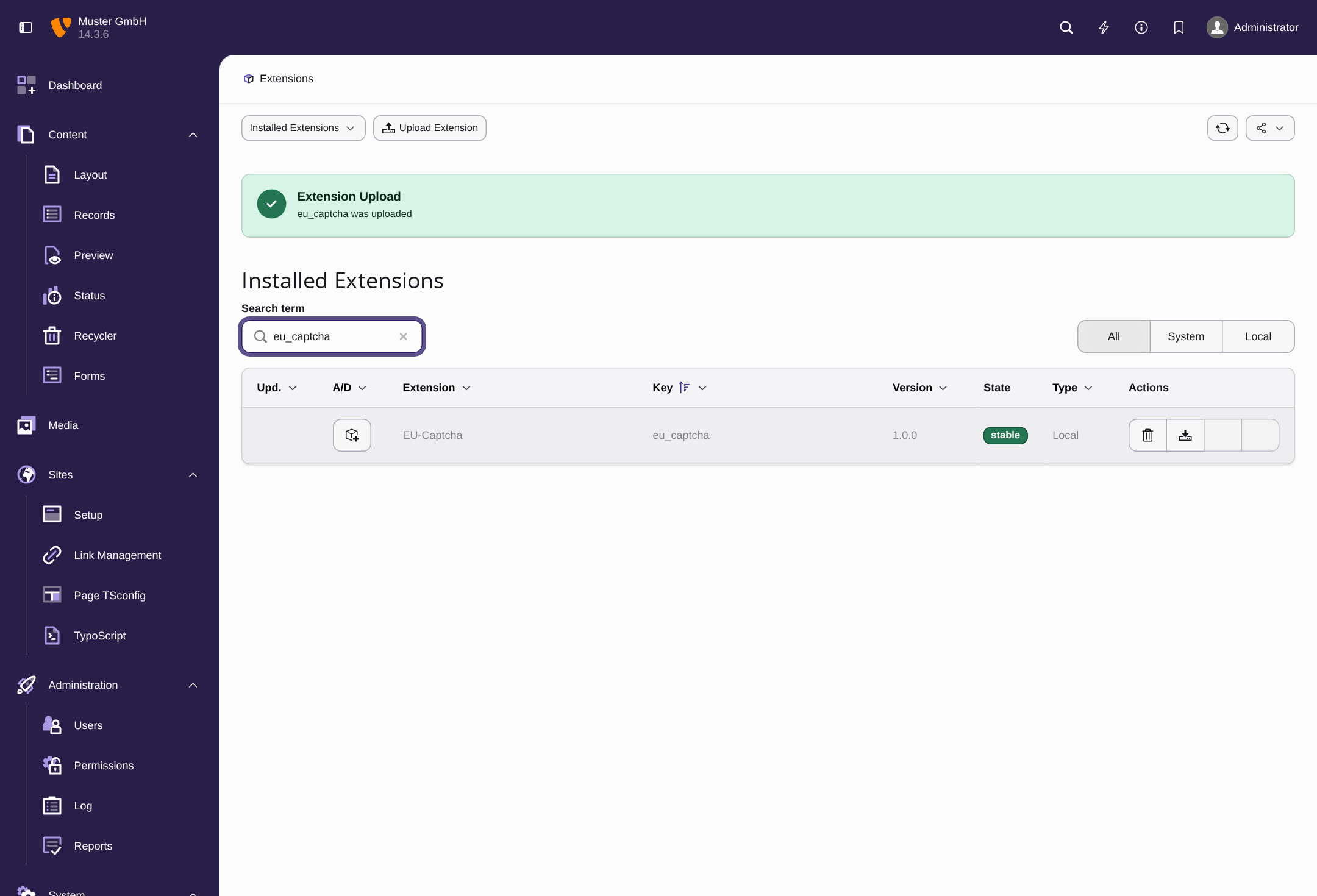
Installed Extensions list after the upload
- ► In the A/D column, click on the icon adjacent to the EU-Captcha extension.
- ► Confirm the prompt.
- ↳ TYPO3 reloads the backend.
- ➔ The extension is enabled.
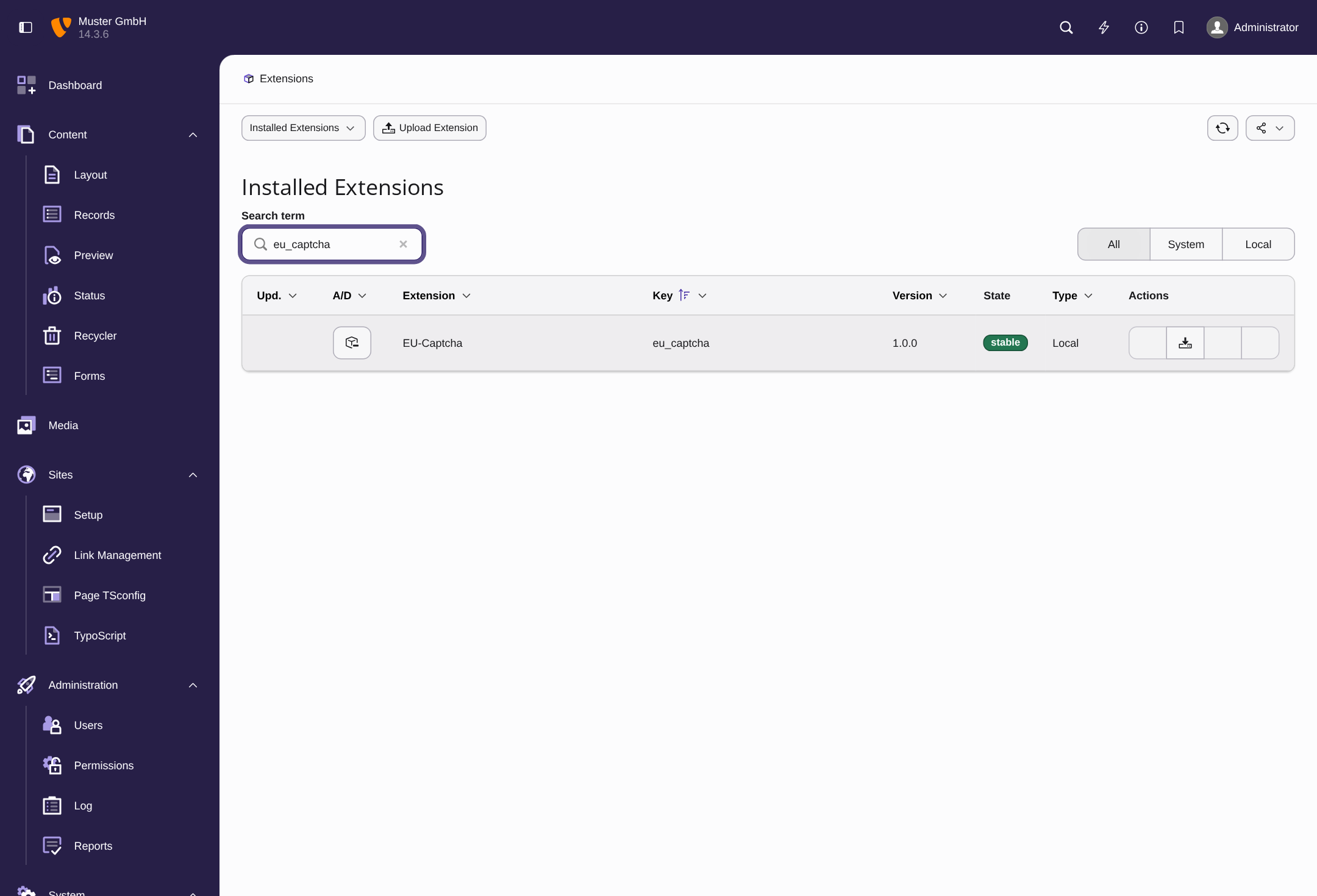
Installed Extensions list with the enabled extension
Embed the TypoScript
The TypoScript replaces the template of the felogin login form with a template of the extension that contains the widget. The verify.js script loads only on the pages that contain the widget. Add this line to the TypoScript file of your website, for example typo3conf/sites/main/setup.typoscript:
From TYPO3 14, the TypoScript of a website comes from a site set. The Sites → TypoScript module only shows the definitions and gives the note that they are changed in the file system.
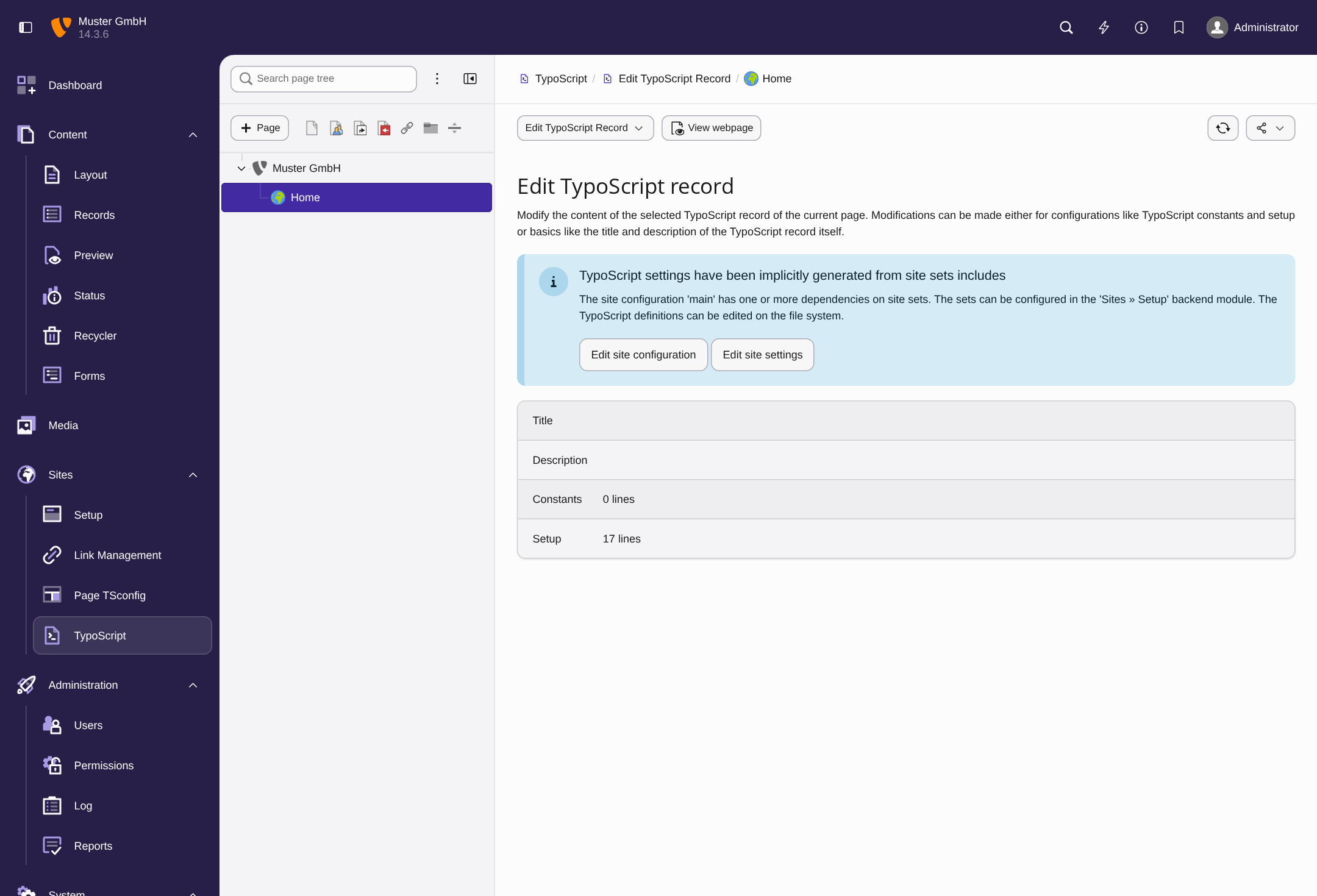
TypoScript module with the note about the site set
Add the widget to your own templates
If your website uses its own template for the felogin login form, then add the widget with the ViewHelper of the extension. The ViewHelper writes the element of the widget with the saved sitekey and loads the verify.js script:
The following options are available:
| Attribute | Effect |
|---|---|
sitekey |
Replaces the saved sitekey. |
theme |
Sets the appearance, values light and dark. |
height |
Sets a fixed height in pixels, minimum 48. |
width |
Sets a fixed width in pixels. |
includeScript |
Writes the <script> element for the verify.js file. Set the value false if your page already loads the file. Default value: true |
includeErrorScript |
Loads the script that shows the EU-Captcha verification failed. Please try again. message below the widget after a failed verification. Default value: true |
Without an attribute, the values from the EU-Captcha module are applicable.
Store the credentials
Proceed as follows to store the credentials:
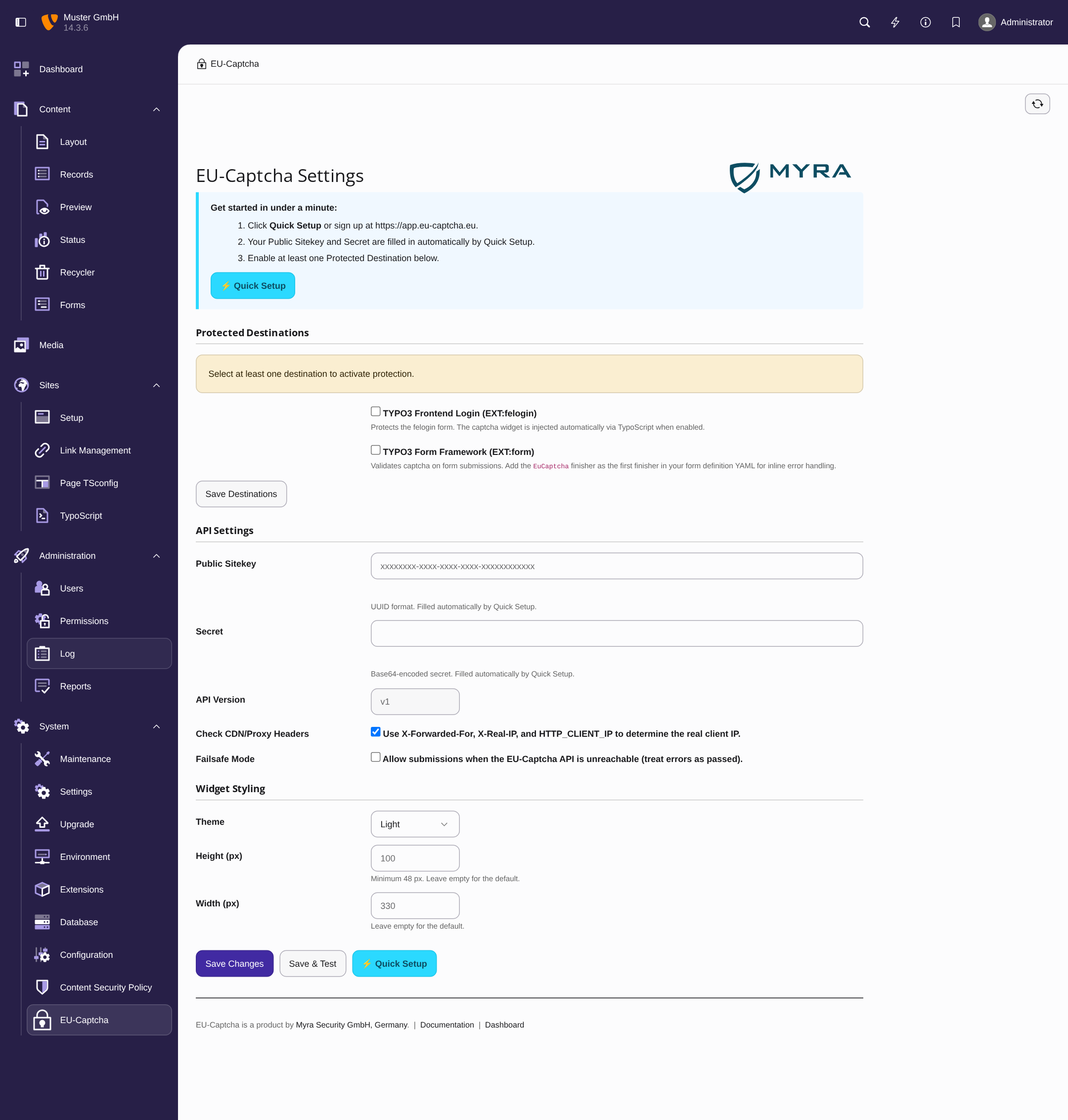
EU-Captcha module without credentials
- ► In TYPO3, open the System → EU-Captcha module.
- ► Click on the Quick Setup button and log in. As an alternative, enter the public sitekey in the Public Sitekey field and the secret in the Secret field manually. The two values are shown in the Details view of the sitekey.
- ► Click on the Save Changes button.
- ➔ The extension saves the credentials.
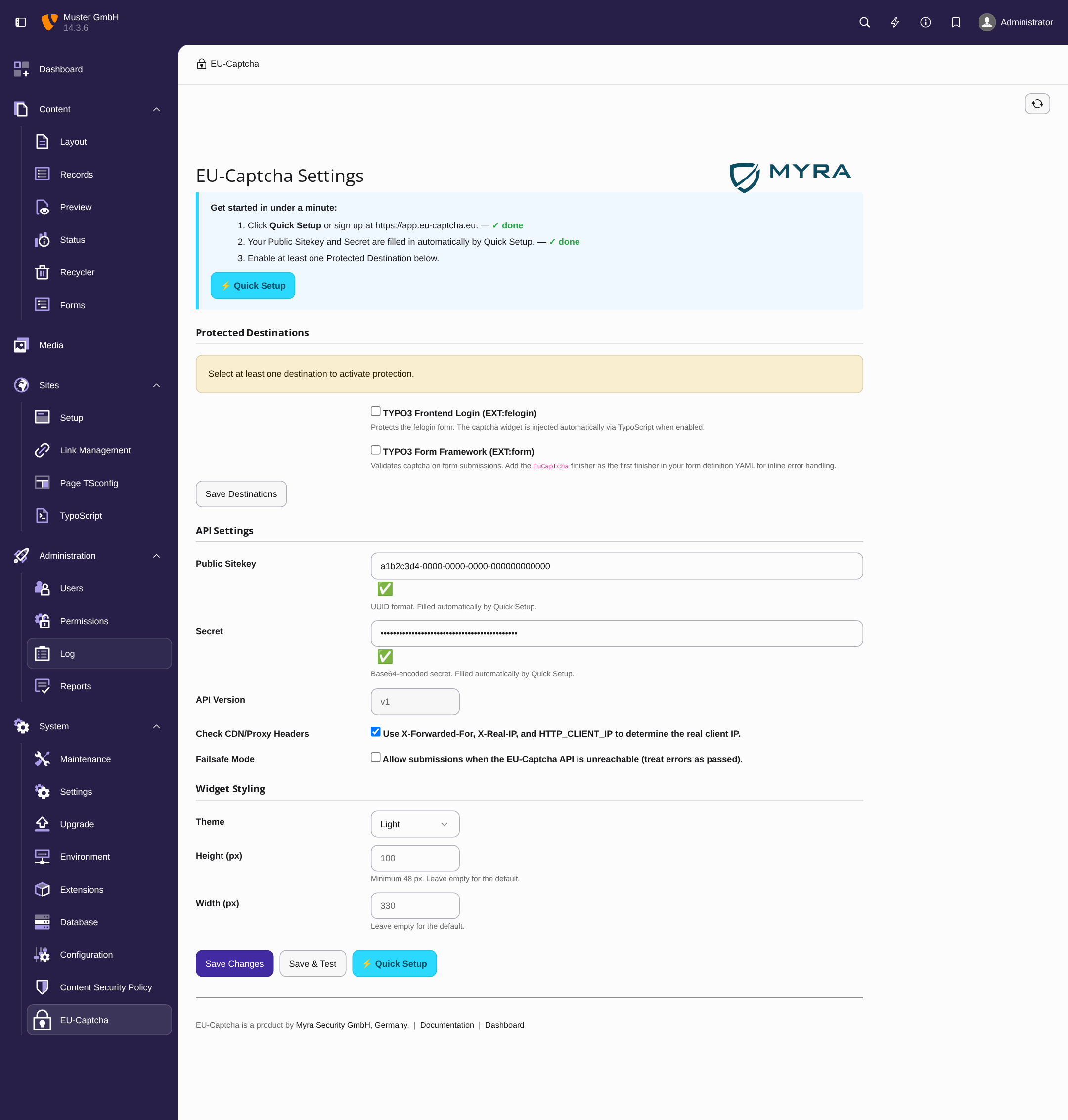
EU-Captcha module with the saved credentials
Note
The Save & Test button saves the credentials and additionally examines them against the API.
Note
The login in the backend of TYPO3 is protected as soon as the sitekey and the secret are saved. To switch this protection off, clear the TYPO3 Backend Login option in the Protected Destinations area.
Select the protected destinations
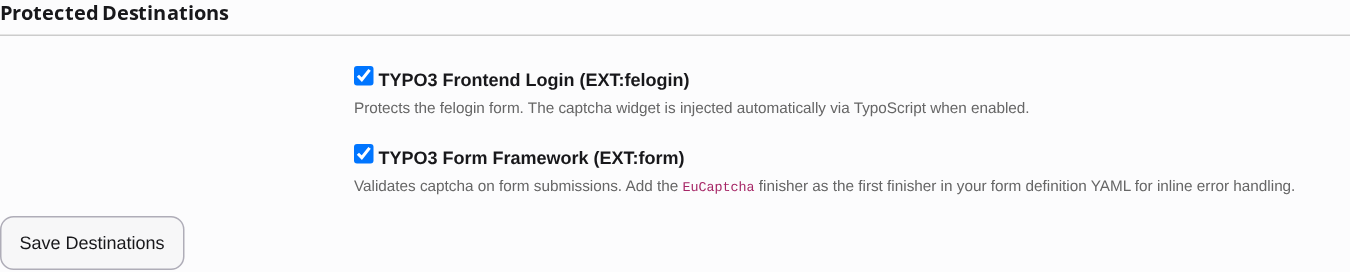
Protected Destinations area with the selected destinations
In the Protected Destinations area, you select the protected destinations. While neither TYPO3 Frontend Login (EXT:felogin) nor TYPO3 Form Framework (EXT:form) is selected, TYPO3 shows the Select at least one destination to activate protection. note.
| Option | Default | Range |
|---|---|---|
| TYPO3 Frontend Login (EXT:felogin) | not selected | Protects the login form of felogin. The widget is added automatically with the TypoScript. |
| TYPO3 Form Framework (EXT:form) | selected | Verifies the transmission of forms from EXT:form. In the YAML definition of the form, enter the EuCaptcha finisher as the first finisher, so that errors are shown immediately in the form. As an alternative, select the EU-Captcha Verify finisher in the form editor. |
| TYPO3 Backend Login | selected | Protects the login form of the TYPO3 backend. Clear the option if the backend is already restricted at the network level. |
Then click on the Save Destinations button.
If the verification fails, TYPO3 shows the EU-Captcha verification failed. Please try again. message in the login form of the backend and in the login form of felogin. For a form from EXT:form, the extension cancels the remaining finishers, and the form appears again with an error message.
Options of the API
These options are available:
| Option | Default | Effect |
|---|---|---|
| Check CDN/Proxy Headers | selected | Reads the true IP address of the visitor from the headers of the system in front. Activate the option if TYPO3 is behind a CDN or a load balancer. |
| Failsafe Mode | not selected | Permits a transmission if the API of Myra EU CAPTCHA is not reachable. An empty or invalid token still counts as failed. |
Appearance of the widget
These options control the appearance:
| Option | Default | Effect |
|---|---|---|
| Theme | Light | Light or dark appearance, values Light and Dark. |
| Height (px) | empty | Fixed height in pixels, minimum 48. With an empty field, the default value is applicable. |
| Width (px) | empty | Fixed width in pixels, minimum 1. With an empty field, the default value is applicable. |
Click on the Save Changes button to save the appearance.
Content Security Policy
The extension supplies its own Content Security Policy. For the frontend, the policy permits the directives that follow:
| Directive | Address |
|---|---|
script-src |
https://cdn.eu-captcha.eu |
connect-src |
https://api.eu-captcha.eu, https://cdn.eu-captcha.eu |
frame-src |
https://api-app.eu-captcha.eu |
The check.html file of the widget loads from https://cdn.eu-captcha.eu. This address is missing from the frame-src directive of the supplied policy. If you use a Content Security Policy in the frontend, then add https://cdn.eu-captcha.eu to the frame-src directive. Without this addition, the script loads, but the iframe of the widget stays empty.
For the backend, the policy permits script-src for https://cdn.eu-captcha.eu and connect-src for https://api.eu-captcha.eu. Thus the widget loads on the login page of the backend. The policy permits the frame-src directive for https://api-app.eu-captcha.eu, https://app.eu-captcha.eu, https://accounts.google.com, https://github.com, and https://appleid.apple.com. Thus the Quick Setup dialog and the login with Google, GitHub, and Apple load in the backend. Here also, https://cdn.eu-captcha.eu is not in frame-src.
Test the integration
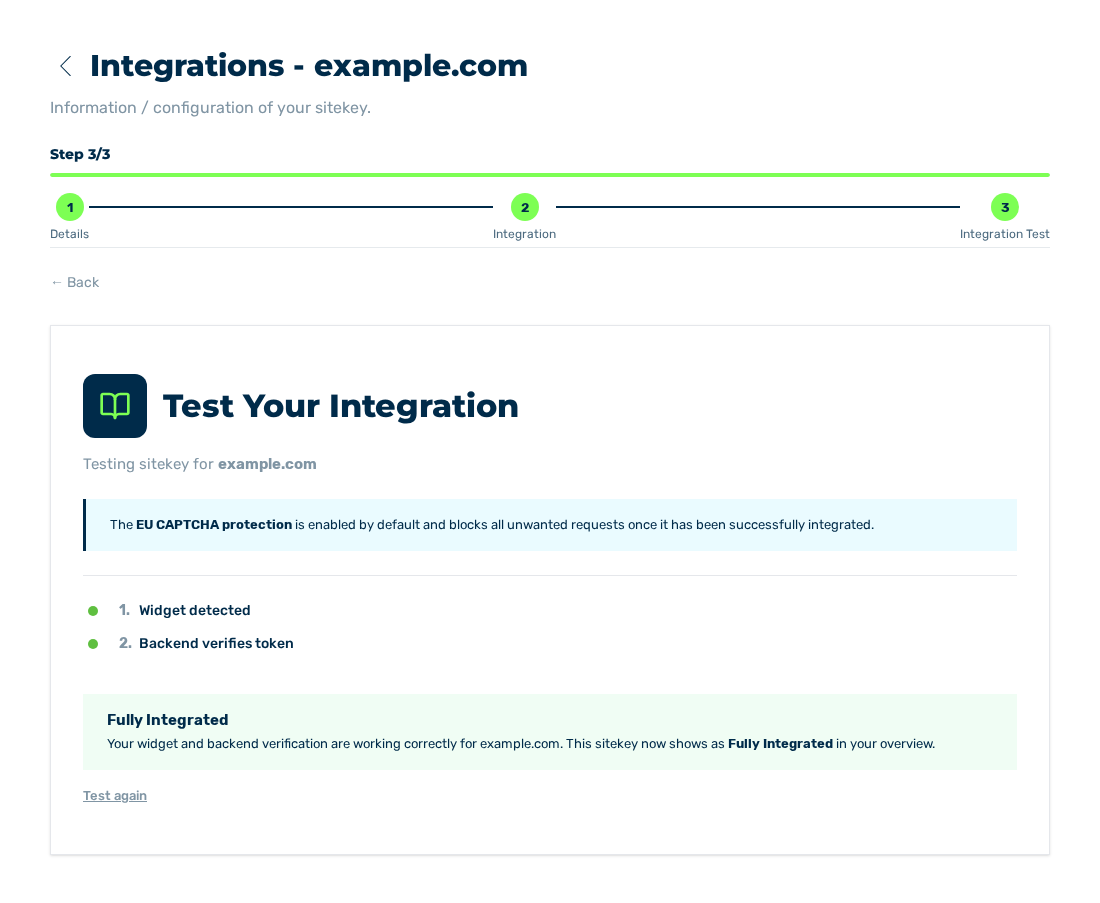
Integration Test view with the Fully Integrated result
After the setup, go to the Integration Test view of the sitekey and examine the embedding.