Log in
You log in to the customer portal with your e-mail address and your password. If two-factor authentication is active for your account, the portal also asks for a code.
The following requirements are met:
- ☑ You created an account and confirmed your e-mail address. See Create an account.
Proceed as follows to log in:
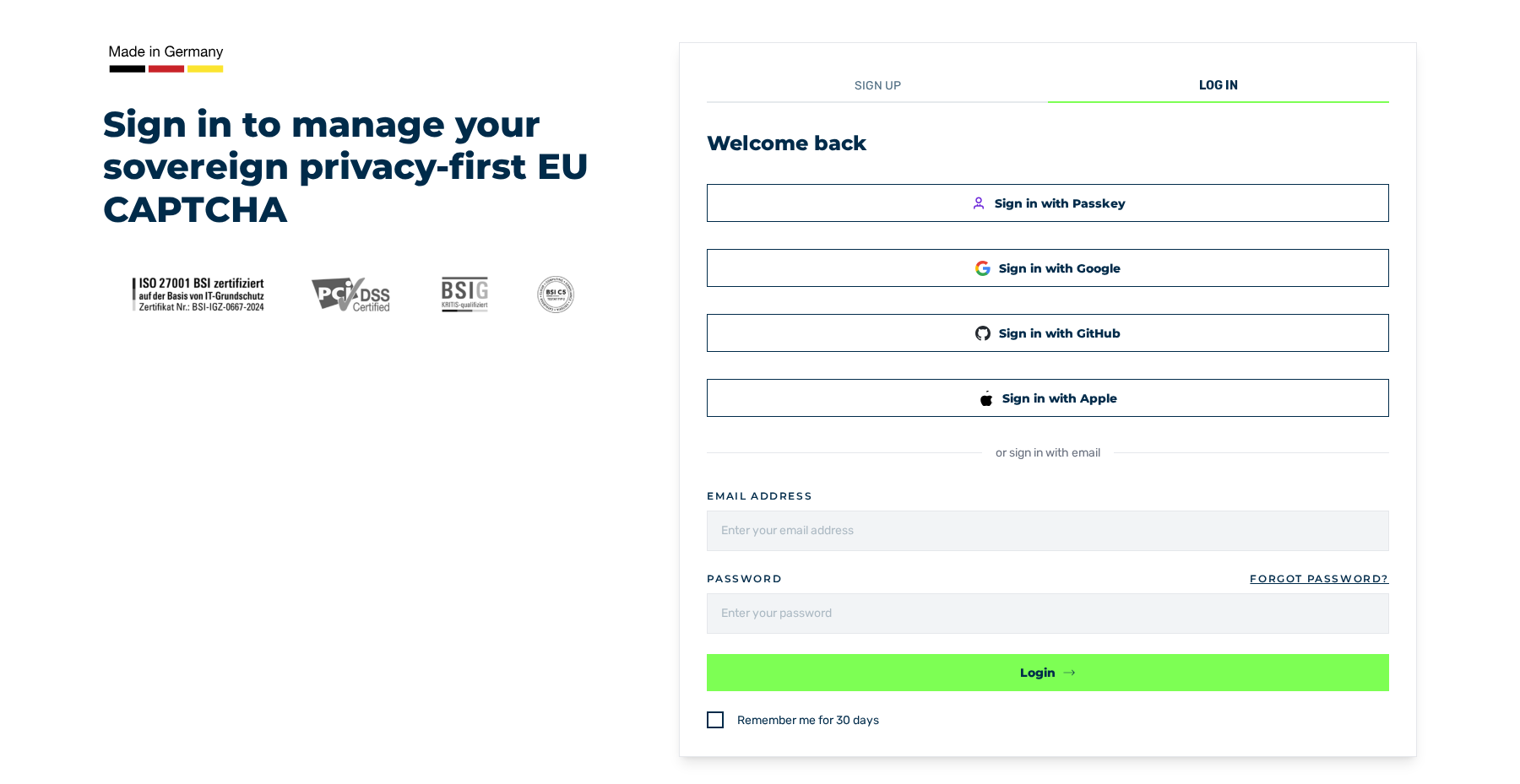
Welcome back view
- ► Open the login page of the customer portal.
- ► In the Email address field, enter your e-mail address.
- ► In the Password field, enter your password.
- ► If required, select the Remember me for 30 days check box.
- ► Click on the Login button.
- ↳ If two-factor authentication is active, the Two-Factor Authentication view is shown.
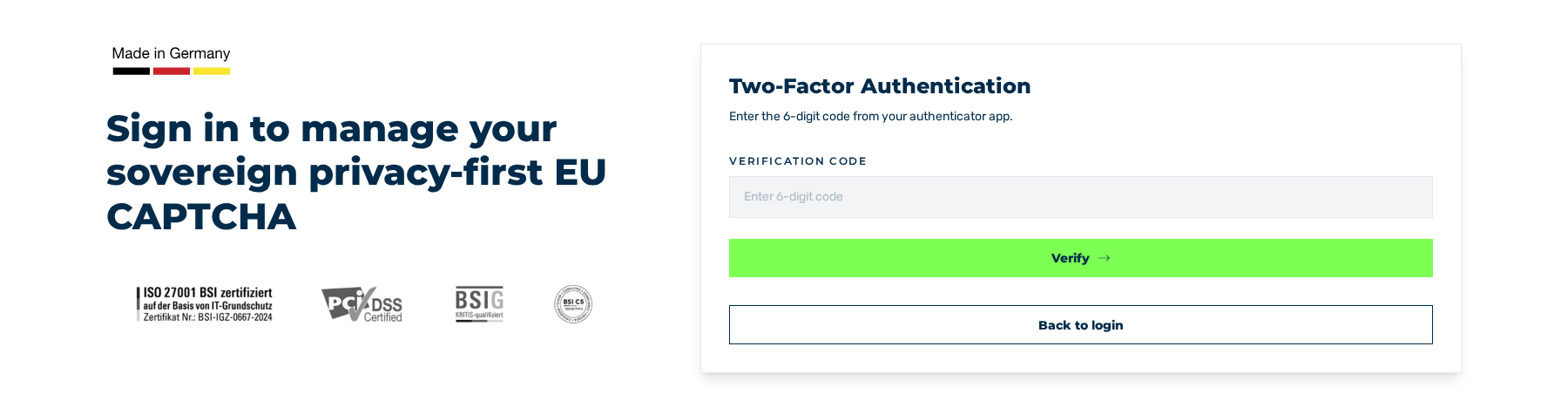
Two-Factor Authentication view
- ► Enter the six-digit code from your authenticator app.
- ► Click on the Verify button.
- ➔ The Dashboard view is shown.
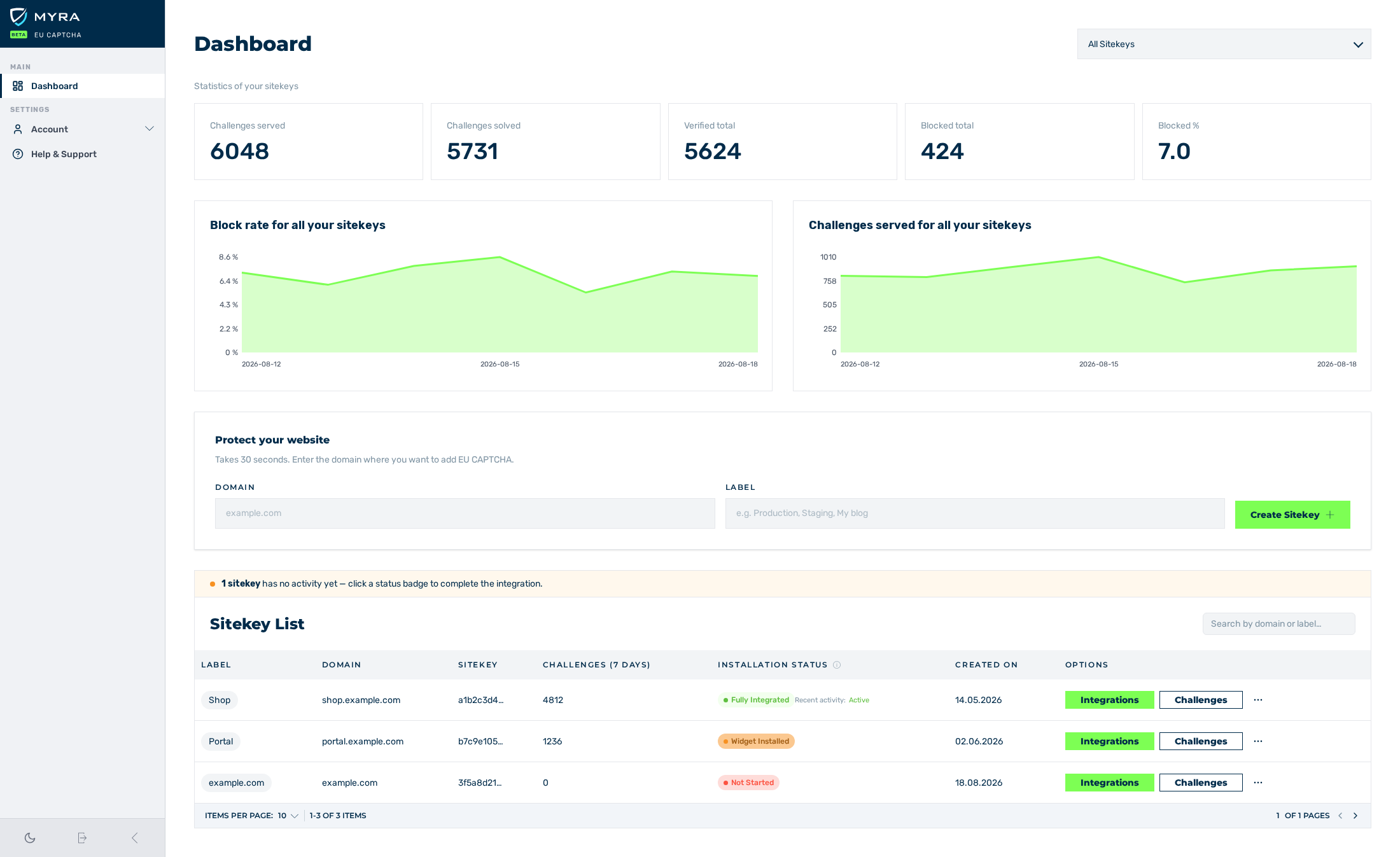
Dashboard view
The Back to login button takes you from the Two-Factor Authentication view back to the login page. Enter the code in 5 minutes. After that, the portal shows the Invalid or expired session. Please log in again. message, and you start the login again.
Instead of an e-mail address and a password, you can log in with these buttons:
- ■ Sign in with Passkey
- ■ Sign in with Google
- ■ Sign in with GitHub
- ■ Sign in with Apple
Note
The sequence of the buttons depends on your device. On Apple devices, Apple is in the first position; on Android devices, Google is in the first position. On all other devices, Passkey is in the first position. On Android devices, the Sign in with Apple button does not apply.
If you forgot your password, click on the Forgot Password? link on the login page. The system sends you an e-mail with a link to the Reset Password view.
Messages
The following messages can occur:
| Message | Cause |
|---|---|
| Email address not confirmed. Please check your inbox and spam folder for a confirmation email. | The e-mail address of the account is not confirmed yet. |
| Account has been deactivated. | The account is deactivated. |
| Too many requests. Please try again later. | More than 50 login attempts in one minute came from your IP address. Wait 60 seconds. |
| Invalid or expired session. Please log in again. | The code of the two-factor authentication was not entered in 5 minutes. |
See Dashboard view.