Create a passkey
A passkey makes the login without a password possible. The device confirms the login, for example with a fingerprint, face recognition, or the device PIN.
The following requirements are met:
- ☑ You are logged in to the customer portal.
- ☑ Your device and your browser support passkeys.
Proceed as follows to create a passkey:
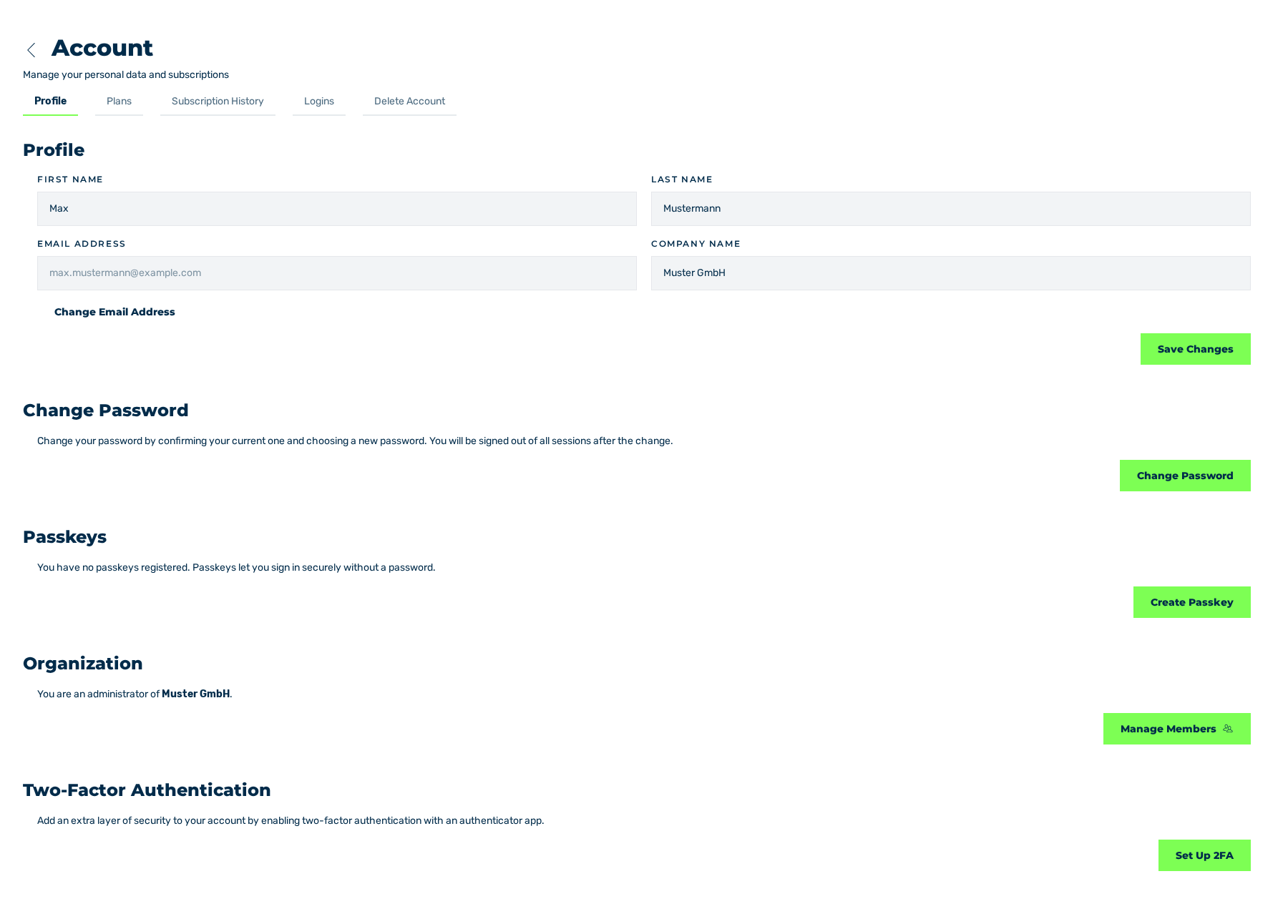
Profile tab
- ► In the sidebar, open the Account › Profile entry.
- ► Click on the Create Passkey button.
- ↳ The browser asks for the confirmation by the device.
- ► Confirm the request on your device.
- ➔ The system creates the passkey and shows the Passkey registered successfully! message.
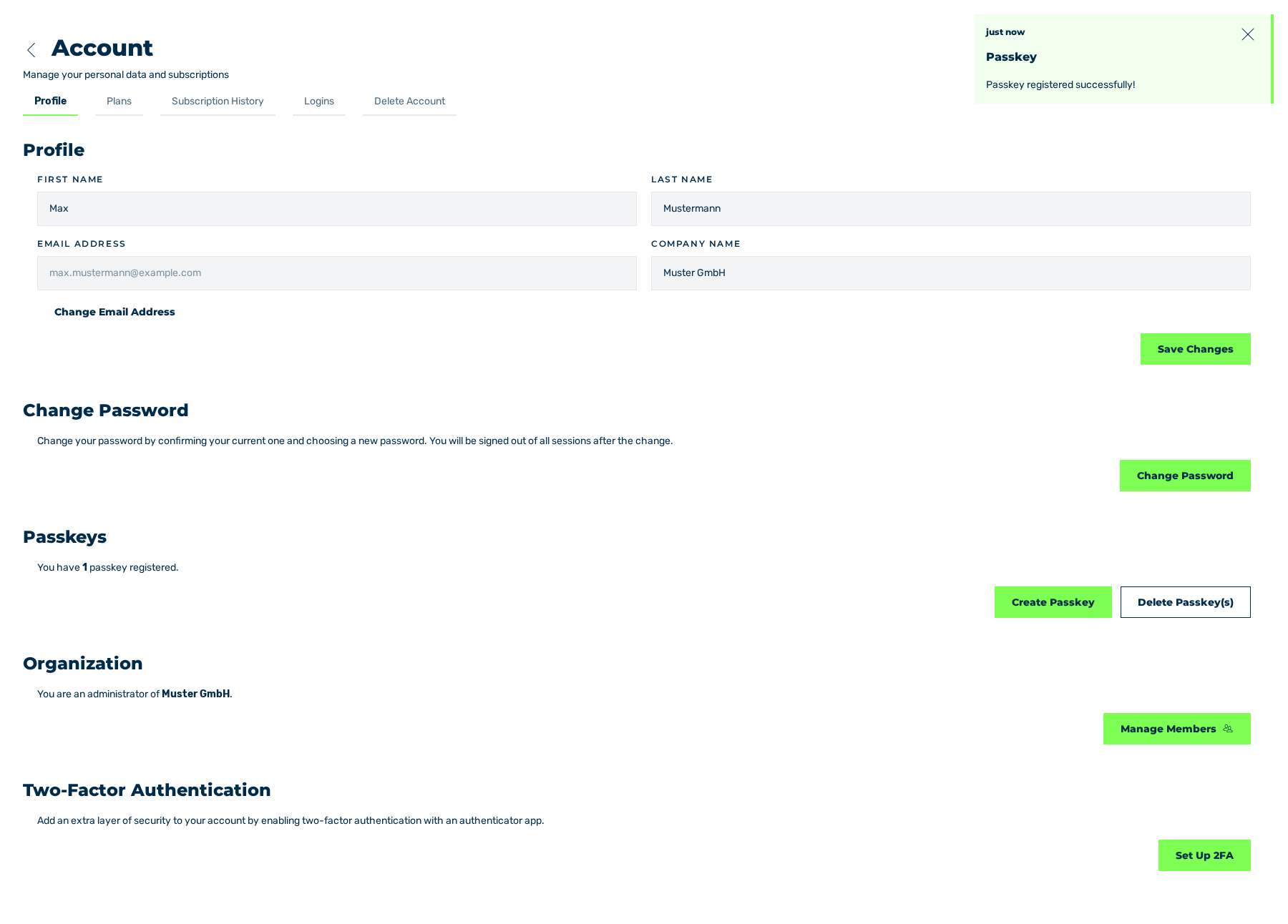
Profile tab with the passkey that was created
To remove all passkeys, click on the Delete Passkey(s) button. See Deleting passkeys.
Attention
At this time, the login with a passkey has a malfunction. Until the correction, use the login with the e-mail address and the password. See The login with a passkey fails.