Embedding the CAPTCHA into your HTML

|
The code snippets can be copied directly into the HTML. When creating a site key, the public site key is automatically inserted into the code snippet. |
The first step is to embedding the EU CAPTCHA into the front end of your website to be part of the form you want to protect.
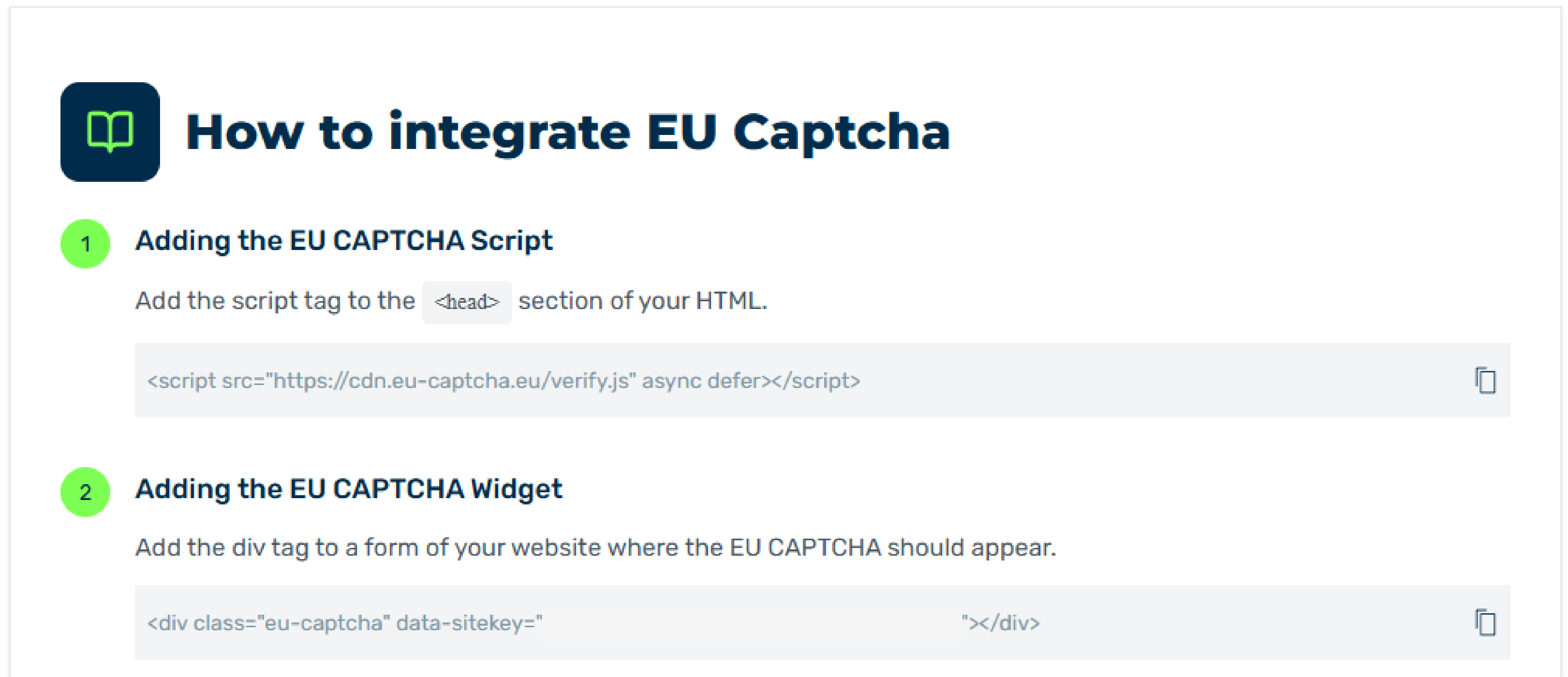
Embedding the EU CAPTCHA into your HTML
Proceed as follows to embedding the EU CAPTCHA into the HTML:
-
Navigate to Adding the EU CAPTCHA Script and click on the
 icon or select the code to copy the script tag.
 -
Add the script tag to the
<head>section of your HTML. -
Navigate to Adding the EU CAPTCHA Widget and click on the
icon or select the code to copy the div tag. -
Add the div tag to a form of your website where the EU CAPTCHA should appear.
 Copy
Copy<div class="eu-captcha" data-sitekey="<public site key>"></div> -
If applicable, add the following attributes to the the div tag:
-
For dark mode:
data-theme="dark"
Light mode is enabled by default and does not need to be activated separately via
data-theme. -
To define the size of the captcha:
data-width="330"
The width for the EU CAPTCHA is
330pxby default.
Copy<div class="eu-captcha" data-sitekey="<public site key>"
data-theme="dark" data-width="400"></div> -
-
All information for the front end are now added to the HTML.
|
|
Myra also provide options to integrate the EU CAPTCHA into the following front end frameworks via packages: |